> ## Documentation Index
> Fetch the complete documentation index at: https://developer.suki.ai/llms.txt
> Use this file to discover all available pages before exploring further.

# In-field Mode

> Learn how to embed Suki Dictation on a text field with in-field mode: your UI to start dictation, rootElement, fieldId, callbacks, and Suki's hosted overlay

<div className="quick-summary-wrapper">
  <div className="quick-summary-header">
    <span className="quick-summary-icon" aria-hidden="true" />

    <span className="quick-summary-title">Quick summary</span>
  </div>

  <div className="quick-summary-content">
    In-field mode is how you embed the Suki Dictation SDK on a text field in an existing web application, so dictation stays tied to that one control instead of floating on its own. You decide how users start dictation in your app and receive the transcript text through callbacks.
  </div>

  <div className="quick-summary-footer">
    <span className="quick-summary-footer-icon" aria-hidden="true" />

    <span className="quick-summary-footer-text">Last updated:</span>
    <span className="quick-summary-footer-date">June 2026</span>
  </div>
</div>

**In-field mode** allows you to embed the Suki Dictation SDK directly into a text field within your application. This ensures dictation remains tied to a specific control rather than floating independently. You choose the entry point for starting dictation based on your application's user interface.

**Launching dictation**

The entry point is entirely part of your UI. You can use a button, an icon, a menu item, or a keyboard shortcut. To launch the session for a specific field, your code must call `show()` in **JavaScript** or mount the Dictation component in **React**.

**Managing the dictation interface**

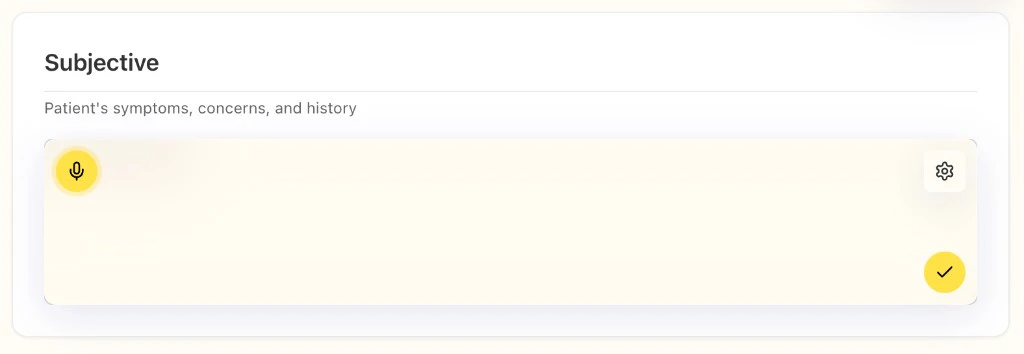
Once the session is open, the Suki Dictation SDK provides the dictation surface. This includes the **microphone**, **Submit**, and **Cancel** controls. The interface appears as a hosted iframe inside the rootElement you provide.

Keep the following requirements in mind to ensure the interface displays correctly:

* **Container sizing**: The iframe sizes itself to the container you provide.

* **Dimensions**: You must provide a **specific height** and **width** for the interface to appear correctly.

* **Data handling**: You receive transcript text through defined callbacks.

* **Troubleshooting**: If the interface does not appear, check your layout and Content Security Policy (CSP) settings.

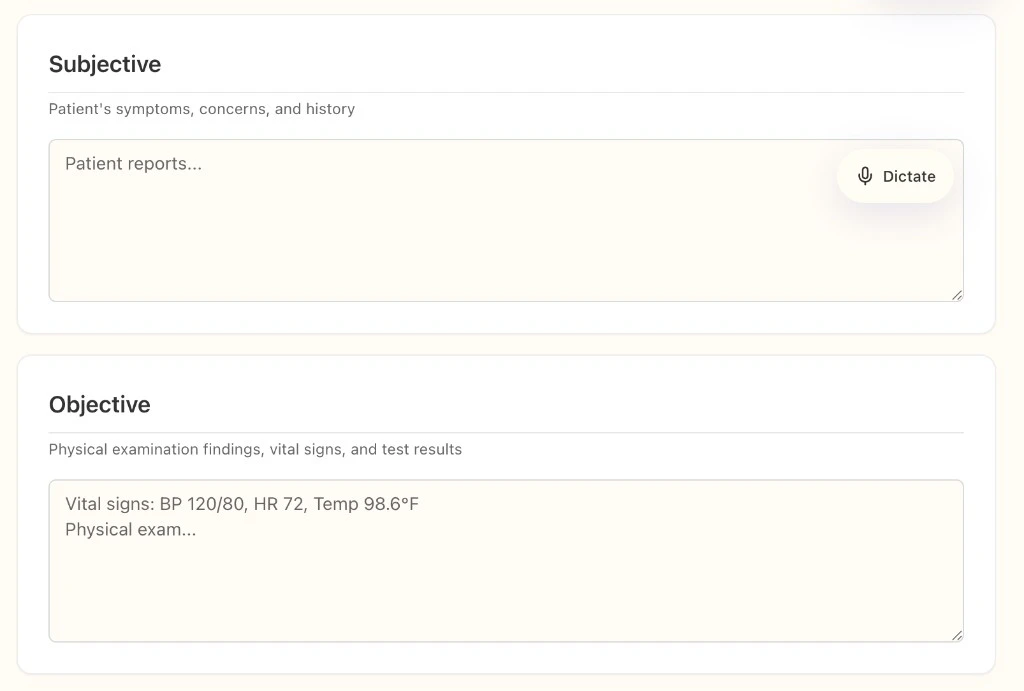
The diagram below is a simple **healthcare-style form** with **several text areas**. Only **one** field shows a **Dictate** control in the **top right** of that field; the rest are plain.

<Note>
  You can place the button or icon anywhere in your application that fits your design. These screens are only examples.
</Note>

<div
  style={{
display: 'flex',
flexWrap: 'wrap',
justifyContent: 'center',
alignItems: 'center',
gap: '1rem',
maxWidth: '80rem',
marginLeft: 'auto',
marginRight: 'auto',
}}
>
  <div style={{ flex: '1 1 280px', minWidth: 0, maxWidth: '100%' }}>
    <img src="https://mintcdn.com/suki-1e08f176/8ZbqOHQ5xwHlf7Ms/dictation-sdk/assets/in-field-mode-example-dictate.png?fit=max&auto=format&n=8ZbqOHQ5xwHlf7Ms&q=85&s=b1678f01db97eadb5abf8a605624c1b3" alt="Subjective and Objective SOAP sections; Subjective shows placeholder text and a Dictate button with microphone in the field header area; Objective shows sample vitals and exam placeholder." width={1024} height={691} style={{ width: '100%', height: 'auto', display: 'block', borderRadius: '10px', border: "1px solid #e0e0e0" }} loading="eager" decoding="async" data-path="dictation-sdk/assets/in-field-mode-example-dictate.png" />
  </div>

  <div
    role="presentation"
    aria-hidden="true"
    style={{
  flex: '0 0 auto',
  fontSize: 'clamp(1.5rem, 4vw, 2.25rem)',
  lineHeight: 1,
  fontWeight: 600,
  opacity: 0.75,
}}
  >
    →
  </div>

  <div style={{ flex: '1 1 280px', minWidth: 0, maxWidth: '100%' }}>
    <img src="https://mintcdn.com/suki-1e08f176/8ZbqOHQ5xwHlf7Ms/dictation-sdk/assets/in-field-mode-example-active.png?fit=max&auto=format&n=8ZbqOHQ5xwHlf7Ms&q=85&s=a88b629ba77ddb1325d1dacb1b1735f1" alt="Subjective SOAP section with patient symptoms description; Suki in-field dictation active with microphone, settings gear, and checkmark submit in the note container." width={1024} height={354} style={{ width: '100%', height: 'auto', display: 'block', borderRadius: '10px', border: "1px solid #e0e0e0" }} loading="eager" decoding="async" data-path="dictation-sdk/assets/in-field-mode-example-active.png" />
  </div>
</div>

## When to choose in-field mode

Use **in-field mode** when:

* You embed dictation for a **specific text field** (or editor) and you design the **entry point** yourself (for example a **Dictation** button, icon, or toolbar action that calls `show()` or mounts `<Dictation>`).
* You want Suki's dictation overlay on the **field's container** (`rootElement`), so mic, submit, and cancel sit with that target instead of a standalone floating panel.

<Note>
  For dictation that is **not** bound to a single input, use [Scratchpad mode](/dictation-sdk/guides/scratchpad-mode) instead.
</Note>

## How to configure in-field mode

For in-field dictation you configure **three** things: **`mode`**, **`rootElement`**, and **`fieldId`**. Together they tell the SDK **which layout to use**, **where to put the iframe**, and **how to label this session** in callbacks.

### Mode

Set `mode` to the string **`"in-field"`** so the SDK uses the overlay-on-container layout instead of scratchpad.

* **JavaScript:** include `mode: "in-field"` in the object you pass to `DictationClient.show()`.
* **React:** set `mode="in-field"` on `<Dictation>`.

```javascript Mode configuration theme={"theme":{"light":"github-dark","dark":"material-theme-darker"}}
mode: "in-field",
```

### Root element

Set `rootElement` to know which element on your page should contain the dictation iframe. The SDK inserts the iframe **inside** that element. It is **not** the
answer to *“which input gets the text”*; you apply transcript text in **callbacks** (and often target your field by `fieldId` or your own state).

**Recommended pattern:**

Use a **parent `<div>`** that wraps the notes area, and pass **that div** as `rootElement`. Pass **`document.getElementById("…")`** (or a ref in React) for that wrapper, **not** for the `<textarea>` or `<input>` alone.

Example markup and how it maps to `rootElement`:

```html theme={"theme":{"light":"github-dark","dark":"material-theme-darker"}}
<!-- rootElement = this outer div (the iframe mounts inside it) -->
<div id="clinical-notes-dictation-root"></div>
<textarea id="clinical-notes"></textarea>
```

<Note>
  The wrapper and textarea can be structured however your layout needs; the important part is that **`rootElement`** points at the **element that should host the iframe**, not at the textarea node.
</Note>

| Do this                                                                    | So that                                                                                                     |
| :------------------------------------------------------------------------- | :---------------------------------------------------------------------------------------------------------- |
| Give the host element a **visible height and width**                       | The iframe fills its parent. A parent with no height often produces a blank area where dictation should be. |
| Set **`position: relative`** on the host when you use overlays or stacking | The dictation layer stays aligned with the field region in typical layouts.                                 |

Refer to [Configuration](/dictation-sdk/guides/configuration) for every `ShowOptions` field and matching React props.

### Field ID

`fieldId` is a **string you invent** to name this dictation session. Every callback sends it back with `text`, so you know **which field** the result belongs to if you have several on the page. It does not have to match a DOM `id`,
but using the same value as your input's `id` is a simple pattern.

Each open dictation instance should use a **stable**, **unique** `fieldId`. Examples for SOAP-style sections: **`soap.subjective`**, **`soap.objective`**, **`soap.assessment`**, **`soap.plan`**.
Refer to [Callback contract payload shape](/dictation-sdk/guides/callbacks#callback-contract-payload-shape) for more details.

## How to use in-field mode

**You** build how users **start** dictation: a **Dictation** button, a link, an icon, or any control that calls `show()` or mounts `<Dictation>`. After they start, **Suki** draws the dictation UI inside the iframe: **microphone**, **submit**, **cancel**, and the rest. You do not rebuild those controls yourself. You receive text and events through **`onSubmit`**, **`onCancel`**, and optionally **`onDraft`**.

## Quick reference

| Item             | In-field behavior                                                         |
| :--------------- | :------------------------------------------------------------------------ |
| **Layout**       | Dictation sits over the **input container** you target with `rootElement` |
| **Mode**         | `"in-field"`                                                              |
| **Root element** | Recommended: element that wraps the field                                 |

## Next steps

<Icon icon="file-lines" iconType="solid" /> Refer to [Scratchpad mode](/dictation-sdk/guides/scratchpad-mode) for floating dictation off a single field.