> ## Documentation Index
> Fetch the complete documentation index at: https://developer.suki.ai/llms.txt
> Use this file to discover all available pages before exploring further.

# Scratchpad Mode

> Learn about when to use scratchpad mode for the Suki Dictation SDK and how to configure it

<div className="quick-summary-wrapper">
  <div className="quick-summary-header">
    <span className="quick-summary-icon" aria-hidden="true" />

    <span className="quick-summary-title">Quick summary</span>
  </div>

  <div className="quick-summary-content">
    Scratchpad mode opens dictation in a floating surface that is not tied to a single text field. You choose how users open it, and you still receive committed (and optional draft) text through callbacks.
  </div>

  <div className="quick-summary-footer">
    <span className="quick-summary-footer-icon" aria-hidden="true" />

    <span className="quick-summary-footer-text">Last updated:</span>
    <span className="quick-summary-footer-date">June 2026</span>
  </div>
</div>

**Scratchpad mode** allows you to run the Suki Dictation SDK in a standalone area of your web application. Dictation does not attach to one specific input the way [In-field mode](/dictation-sdk/guides/in-field-mode) does.

**Launching dictation**

The entry point is entirely part of your UI. You can use a toolbar action, header button, floating launcher, menu item, keyboard shortcut, or any pattern you prefer. To launch scratchpad dictation, your code must call `show()` with **mode: "scratchpad"** in **JavaScript** or mount the **Dictation** component in **React** with **mode: "scratchpad"**.

**Managing the dictation interface**

Once the session is open, the Suki Dictation SDK provides the dictation surface. This includes the **microphone**, **Close**, **copy-to-clipboard**, and related controls. The interface appears as a hosted iframe in the layout you configure.

Keep the following requirements in mind to ensure the interface displays correctly:

* **Layout**: You control where the scratchpad appears (for example, a floating panel anchored to a launcher).

* **Mode**: You must pass **scratchpad** in `show()` or on `<Dictation>` so the SDK uses the floating surface.
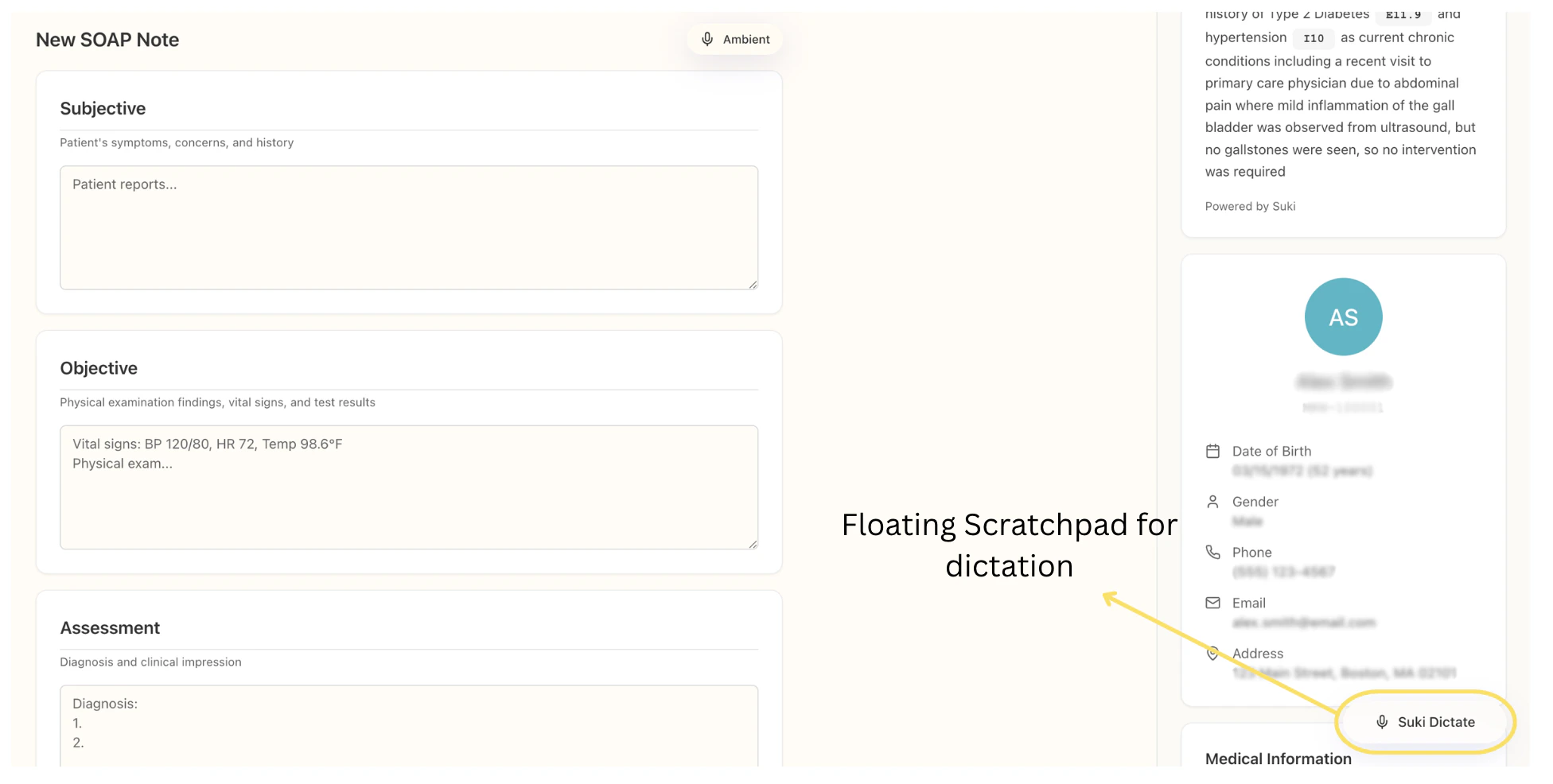
* **Data handling**: You receive transcript text through defined callbacks.

The diagram below is a **clinical-style form** (for example, SOAP note sections) with a **floating Open dictation** launcher in the corner. After the user opens it, the **scratchpad** appears **above** that launcher as a tall panel on the right, with the transcript area and **Mic**, **Close**, and **Copy**.

<Note>
  You can place the launcher anywhere in your application that fits your design. Your real layout might use a portal, column, or different spacing. These screens are only examples.
</Note>

<div style={{ maxWidth: '72rem', marginLeft: 'auto', marginRight: 'auto' }}>
  <img src="https://mintcdn.com/suki-1e08f176/8ZbqOHQ5xwHlf7Ms/dictation-sdk/assets/scratchpad.png?fit=max&auto=format&n=8ZbqOHQ5xwHlf7Ms&q=85&s=e939f0975bbd9ad819ea4d9ff8d4d4cf" alt="New SOAP Note interface with Subjective, Objective, and Assessment sections and a patient sidebar; floating Suki Dictate button in the bottom-right corner with an arrow and label reading Floating Scratchpad for dictation." width={1024} height={509} style={{ width: '100%', height: 'auto', display: 'block', borderRadius: '10px', border: "1px solid #e0e0e0" }} loading="eager" decoding="async" data-path="dictation-sdk/assets/scratchpad.png" />
</div>

## When to choose scratchpad mode

Use **scratchpad mode** when:

* Dictation should live in its **own** area (side panel, overlay region, or similar), not overlaid on one field’s container.
* Users need to **capture speech first** and then paste or apply text elsewhere, or you want **quick dictation** without binding the session to a single `textarea`.

<Tip>
  When dictation should stay tied to **one** text field and your **Dictate** control sits with that field, use [In-field mode](/dictation-sdk/guides/in-field-mode) instead.
</Tip>

## How to configure scratchpad mode

For scratchpad dictation you set **`mode`**, **`fieldId`**, and usually consider **`rootElement`** (and other [`ShowOptions`](/dictation-sdk/guides/configuration)) so the SDK knows **which layout to use**, **where the iframe mounts**, and **how to label the session** in callbacks.

### Mode

Set `mode` to the string **`"scratchpad"`** so the SDK uses the **floating standalone** dictation UI instead of in-field overlay.

* **JavaScript:** include `mode: "scratchpad"` in the object you pass to `DictationClient.show()`.
* **React:** set `mode="scratchpad"` on `<Dictation>`.

```javascript Mode configuration theme={"theme":{"light":"github-dark","dark":"material-theme-darker"}}
mode: "scratchpad",
```

### Root element

For scratchpad, **`rootElement`** is still the DOM node where the SDK **mounts** the dictation iframe. It is usually a **dedicated region** of your layout (panel, column, or modal body), **not** a wrapper around a single clinical line item.

The hosted UI still **measures the same layout box** as in-field mode: **`rootElement`** should be an element with **real width and height** so the floating surface has room to render. If the host **collapses** (for example **zero height** in a flex or grid row, a hidden parent, or no **`min-height`**), you will usually see a **blank** or **clipped** area even though scratchpad is “floating.”

When the scratchpad region **sits on top of** or **beside** other UI, set **`position: relative`** on that host (unless you already have another positioning context) so stacking and alignment stay predictable.

<Tip>
  For wrapper sizing patterns and CSS, refer to [Wrapper layout best practices](/dictation-sdk/guides/configuration#wrapper-layout) on [Configuration](/dictation-sdk/guides/configuration).
</Tip>

### Field ID

**`fieldId`** is a **string you invent** to name this scratchpad session. Every callback sends it back with `text`, which helps if you run **multiple** scratchpads or mix scratchpad with in-field flows. It does not have to match a DOM `id`.

Use a **stable**, **unique** id per scratchpad instance; a common choice is **`scratchpad`**, or a namespaced value such as **`scratchpad.draft`**
if you run more than one.

## How to use scratchpad mode

**You** build how users **open** scratchpad dictation. After they start, **Suki** draws the dictation UI in the iframe: **microphone**, **close**, **copy**, and the rest. You do not recreate those controls yourself. You receive text and events through **`onSubmit`**, **`onCancel`**, and optionally **`onDraft`**.

## Quick reference

| Item             | Scratchpad behavior                                                   |
| :--------------- | :-------------------------------------------------------------------- |
| **Layout**       | **Floating** standalone dictation UI, not tied to one input container |
| **Mode**         | `"scratchpad"`                                                        |
| **Root element** | Host region for the iframe                                            |

## Next steps

<Icon icon="file-lines" iconType="solid" /> Refer to [In-field mode](/dictation-sdk/guides/in-field-mode) when dictation should attach to a specific field. Read [Callbacks](/dictation-sdk/guides/callbacks) for handlers and payload shape, and the [Configuration](/dictation-sdk/guides/configuration) reference for all options.
