> ## Documentation Index
> Fetch the complete documentation index at: https://developer.suki.ai/llms.txt
> Use this file to discover all available pages before exploring further.
# Authentication Mechanisms for Suki Partners
> Learn about the available authentication mechanisms that Suki supports. Choose the best one for your use case and get started with the Suki APIs and SDKs
**Are you a Suki partner?**
To use any Suki API or SDK, you must be a Suki partner. Contact the partnership team to begin the onboarding process. They help you set up your authentication system and get started with the Suki APIs and SDKs.
Already a Suki partner and looking for how to authenticate providers and users against the Suki REST APIs (register and login for Suki Token)? Refer to the [Provider authentication](/api-reference/provider-authentication) guide for more details.
This guide explains the aviailable authentication mechanisms for Suki partners. Choose the best one for your use case. Suki uses your existing authentication system so your application can call Suki APIs and SDKs. You keep user login in your identity provider, and Suki does not handle user passwords or sign-in screens. After a user signs in, your identity provider issues a Partner Token (JWT). You send that token to Suki, and Suki verifies it with your public keys and grants access.
**What you set up for Partner authentication to work:**
* **Recommended:** Use **OAuth 2.0 / OpenID Connect** so your identity provider signs users in and issues a **JWT** Partner Token.
* Share your public keys with Suki (a **JWKS URL** is recommended) so Suki can verify that token.
* Pass the **Partner Token (JWT)** to Suki when you initialize an SDK or call Partner APIs.
* Receive access from Suki after verification, then call Ambient, Form filling, Dictation, and related modalities.
## Prerequisites
Before you begin, ensure you have:
**Recommended:** OAuth 2.0 / OpenID Connect that issues a JWT (ID token) as the Partner Token. Custom systems that mint RS256 JWTs are also supported.
JWTs that include at least one consistent user identifier claim (like `sub` or `email`).
A public JWKS URL where Suki can fetch your IDP public keys to verify Partner Tokens.
Completed [Partner onboarding](/documentation/get-started/partner-onboarding) and registered your JWKS endpoint URL (or other public-key method) with Suki.
## How authentication works
Suki uses a federated authentication model called **token exchange**. Rather than maintaining its own user accounts and passwords, Suki trusts the identity provider you already use. When your identity provider confirms a user's identity, it issues a signed token that Suki validates and exchanges for access. This means you manage user accounts and login in one place, and Suki verifies each user through the token you send.
**Mental model for authentication:**
1. A user signs in to your application using your identity provider.
2. Your system generates a JWT for that user (known as the Partner Token).
3. You send the generated **Partner Token (JWT)** to Suki when you initialize an SDK, or as `partner_token` on Partner API auth calls.
4. Suki verifies the token using your public keys and grants access.
The Partner Token must be a standard JWT that Suki can verify using your public keys.
```mermaid actions={false} theme={"theme":{"light":"github-dark","dark":"material-theme-darker"}}
flowchart LR
A[User signs in
to your app] --> B[IDP issues
Partner Token JWT]
B --> C[Your app sends
token to Suki]
C --> D[Suki verifies
with your JWKS]
D --> E[Suki grants access
SDK or sdp_suki_token]
style A fill:#FFF394,stroke:#333,color:#000
style B fill:#FFF394,stroke:#333,color:#000
style C fill:#FFF394,stroke:#333,color:#000
style D fill:#FFF394,stroke:#333,color:#000
style E fill:#FFF394,stroke:#333,color:#000
```
## Key concepts
### Identity provider (IDP)
An Identity Provider is the system that handles user authentication for your application. When users sign in, your IDP verifies their credentials and confirms their identity. This can be a third-party service like **Okta** or **Azure AD**, or a system you built yourself to handle user authentication.
### Partner Token (JWT)
The Partner Token (JWT) is a JWT that your identity provider creates after successfully authenticating a user. You pass this token to Suki's SDKs or APIs to prove the user's identity. In SDK configuration this is often named `partnerToken`. In Partner API request bodies it is `partner_token`.
**Requirements for the Partner Token:**
* Must be signed using the [RS256 algorithm](https://www.techtarget.com/searchsecurity/definition/RSA) (RSA Signature with SHA-256)
* Must be issued by your identity provider after user authentication
* Must include user identifier claims that Suki can verify
**Required claims for the Partner Token:**
The Partner Token you provide to Suki must include one or more of these JWT claims:
* **`exp`** - Token expiration time (Unix timestamp). The token must not be expired when you send it to Suki.
* **`iss`** - Token issuer (usually your identity provider's URL or identifier).
* **`aud`** - Token audience (who the token is intended for).
* **User Identifier** - A claim that uniquely identifies the user, such as `sub`, `email`, or a custom claim like `userId`.
During onboarding, you must inform Suki which **identifier field** your tokens use. If your tokens have multiple identifiers, **specify** which one is the **primary identifier**.
## Recommended path: OAuth 2.0 with a JWT and JWKS URL
For Partner authentication, use **OAuth 2.0** or **OpenID Connect** so your identity provider signs users in and issues a **JWT** (usually an ID token). Pass that JWT to Suki as the **Partner Token**. Register a public **JWKS URL** during onboarding so Suki can fetch your IDP public keys and verify the token signature.
### OAuth 2.0 / OpenID Connect
Use OAuth 2.0 or OpenID Connect so your identity provider (for example Okta or Azure AD) handles user login and issues an ID token (a JWT). Pass that ID token to Suki as the Partner Token (`partnerToken` in SDKs, `partner_token` on Partner API auth calls).
**Why this is secure:**
* Your identity provider handles authentication
* Neither Suki nor your app handles user passwords
* Tokens are cryptographically signed and verified
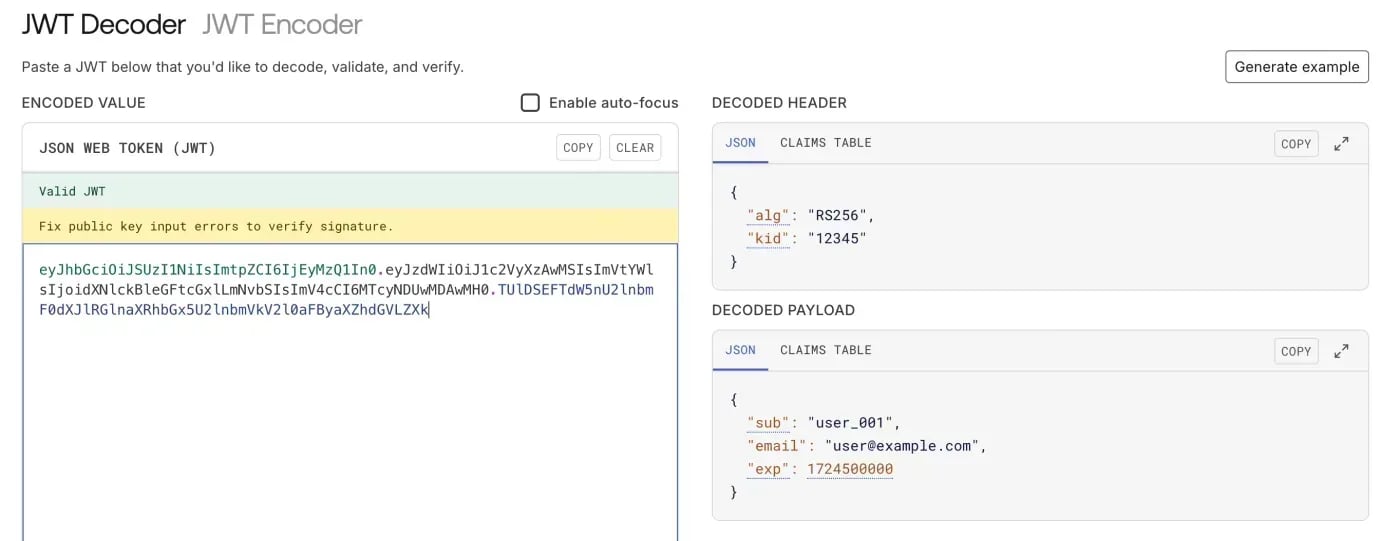
**Sample JWT:**
```JWT theme={"theme":{"light":"github-dark","dark":"material-theme-darker"}}
eyJhbGciOiJSUzI1NiIsImtpZCI6IjEyMzQ1In0.
eyJzdWIiOiJ1c2VyXzAwMSIsImVtYWlsIjoidXNlckBleGFtcGxlLmNvbSIsImV4cCI6MTcyNDUwMDAwMH0.
TUlDSEFTdW5nU2lnbmF0dXJlRGlnaXRhbGx5U2lnbmVkV2l0aFByaXZhdGVLZXk
```
Use [jwt.io](https://jwt.io/) to decode and inspect JWT tokens. Paste your token to see its claims and verify the structure.
 ### JWKS URL
A JWKS (JSON Web Key Set) URL is a public HTTPS endpoint where Suki fetches your identity provider public keys. Suki uses those keys to verify that your Partner Token was signed by your IDP and has not been tampered with.
During onboarding, register this JWKS URL with Suki. When you send a Partner Token, Suki uses your Partner ID to look up that URL and verify the token signature.
**Example partner JWKS URL:** `https://your-idp.example.com/.well-known/jwks.json`
**Example JWKS response:**
```json JSON theme={"theme":{"light":"github-dark","dark":"material-theme-darker"}}
{
"keys": [
{
"kty": "RSA",
"kid": "your-key-id",
"use": "sig",
"alg": "RS256",
"n": "base64url-encoded-modulus",
"e": "base64url-encoded-exponent"
}
]
}
```
#### How to find your JWKS URL?
If you use Okta, Auth0, AWS Cognito, Azure AD, or Google Identity, they provide this URL automatically.
**Where to find it?**
* Check your identity provider's developer console → application settings → **JWKS** or **OpenID Connect configuration**
* Often listed in OpenID discovery at: `https://your-idp-domain/.well-known/openid-configuration` (look for `jwks_uri`)
* If you can't find it, contact your identity provider or watch this [Tutorial video](https://www.youtube.com/watch?v=biv2kFFjsfE)
## Other public key sharing methods
If you cannot host a JWKS URL, Suki also supports these methods during onboarding. Prefer **JWKS URL** with OAuth 2.0 whenever you can.
| Method | Description |
| :----------------- | :--------------------------------------------------------------------- |
| **JWKS\_URL** | **Recommended.** Covered in [JWKS URL](#jwks-url) above. |
| **STORED\_SECRET** | Share your public key with Suki; we store it securely in our database. |
| **OKTA** | Use Okta as your identity provider; share your Okta issuer URL. |
| **JWTASSERTION** | Share your public key as a JWT signed by Suki's private key. |
## Using a custom authentication system
If you do not use OAuth 2.0, you can still mint JWTs with your own authentication system. Those tokens must meet the Partner Token requirements (RS256, required claims, standard JWT format), and you must still share public keys with Suki (preferably via a JWKS URL).
* Signed with the [RS256 algorithm](https://www.techtarget.com/searchsecurity/definition/RSA) (RSA Signature with SHA-256)
* Include all required claims
* Properly formatted as a standard JWT
When you pass a Partner Token to Suki, we use your Partner ID to find your registered public-key method (usually a JWKS URL) and verify the token's signature. We trust that you have properly authenticated the user.
## Partner authentication flow steps
For the diagram and a detailed walkthrough of the Partner authentication flow, refer to the [Partner authentication flow](/documentation/how-to/partner-authentication-flow) guide. For Partner API register and login, refer to [Provider authentication](/api-reference/provider-authentication).
A user signs in to your application using your identity provider. After successful authentication, your IDP issues a JWT (Partner Token).
**SDKs:** Your application initializes the Suki SDK with the Partner Token and your Partner ID. The SDK sends these to Suki's backend for validation.
**Partner APIs:** Your application calls [Register](/api-reference/authentication/register) (once per new user if needed) and [Login](/api-reference/authentication/login) with `partner_id` and `partner_token` (and `provider_id` when your partner type requires it).
Suki validates your token:
* Uses your Partner ID to find your partner configuration
* Fetches your public keys from your registered JWKS endpoint (or your configured public-key method)
* Verifies the token's digital signature using those keys
* Confirms the token has not expired and contains required claims
If validation succeeds, Suki returns a Suki-specific token.
**SDKs:** The SDK stores this token securely, includes it in API requests, and refreshes it when needed. You do not manage the token yourself.
**Partner APIs:** Use the returned `suki_token` as the `sdp_suki_token` header on subsequent REST and WebSocket calls. The token is valid for **1 hour**. Call Login again with a valid Partner Token to refresh it.
Your application can now use Suki's APIs and SDKs for Ambient, Form filling, Dictation, and related workflows.
## Troubleshooting
Common authentication issues and how to fix them:
**Error:** 400 Bad Request - "Missing required identifier claim"
**Fix:**
* Check that your Partner Token includes the user identifier claim you specified during onboarding
* Ensure the identifier value is not empty or null
* If your token structure changed, contact [Suki support](https://forms.suki.ai/SukiSupport/form/SukiSDKSupport/formperma/T3z7hYJ7Ph-J7JrWSN08QJn32BYjarkxqm8Lm8XFPow) to update your configuration
**Error:** 401 Unauthorized - "Token validation failed"
**Fix:**
* Verify your application generates valid JWTs
* Check the `exp` claim to ensure the token hasn't expired
* Confirm all required claims (`exp`, `iss`, `aud`, user identifier) are present
* Use [jwt.io](https://jwt.io/) to decode and inspect your token
**Error:** 502 Bad Gateway or timeout
**Fix:**
* Ensure your JWKS endpoint URL is publicly accessible over HTTPS
* Check firewall rules or IP restrictions that might block Suki's servers
* Test the URL in a browser or with `curl` to confirm it's reachable
**Error:** 400 Bad Request - "Unknown partner identifier"
**Fix:**
* Verify the Partner ID you're using matches the one Suki provided during onboarding
* Check that your JWKS URL in Suki's system matches your actual endpoint URL
**Error:** 400 Bad Request - "Malformed token"
**Fix:**
* Ensure the token follows standard JWT format: `header.payload.signature`
* Verify the token is properly Base64URL encoded
* Check that the `alg` in the header matches your signing algorithm (should be RS256)
**Error:** Authentication fails after previously working
**Fix:**
* If you rotated your signing keys, update your JWKS endpoint with the new public keys
* Verify the `kid` (Key ID) in your JWT header matches a key in your JWKS endpoint
* Ensure old keys remain available during the transition period
## Next steps
Once you verify that authentication is working, you're ready to integrate Suki's modalities:
**[Web SDK](/web-sdk/overview)** - Add pre-built UI components to your web application
**[Mobile SDK](/mobile-sdk/overview)** - Integrate ambient intelligence into iOS apps
**[Headless Web SDK](/headless-web-sdk/introduction)** - Build custom UIs with React hooks
**[API reference](/api-reference/overview)** - Use REST APIs for maximum flexibility
### JWKS URL
A JWKS (JSON Web Key Set) URL is a public HTTPS endpoint where Suki fetches your identity provider public keys. Suki uses those keys to verify that your Partner Token was signed by your IDP and has not been tampered with.
During onboarding, register this JWKS URL with Suki. When you send a Partner Token, Suki uses your Partner ID to look up that URL and verify the token signature.
**Example partner JWKS URL:** `https://your-idp.example.com/.well-known/jwks.json`
**Example JWKS response:**
```json JSON theme={"theme":{"light":"github-dark","dark":"material-theme-darker"}}
{
"keys": [
{
"kty": "RSA",
"kid": "your-key-id",
"use": "sig",
"alg": "RS256",
"n": "base64url-encoded-modulus",
"e": "base64url-encoded-exponent"
}
]
}
```
#### How to find your JWKS URL?
If you use Okta, Auth0, AWS Cognito, Azure AD, or Google Identity, they provide this URL automatically.
**Where to find it?**
* Check your identity provider's developer console → application settings → **JWKS** or **OpenID Connect configuration**
* Often listed in OpenID discovery at: `https://your-idp-domain/.well-known/openid-configuration` (look for `jwks_uri`)
* If you can't find it, contact your identity provider or watch this [Tutorial video](https://www.youtube.com/watch?v=biv2kFFjsfE)
## Other public key sharing methods
If you cannot host a JWKS URL, Suki also supports these methods during onboarding. Prefer **JWKS URL** with OAuth 2.0 whenever you can.
| Method | Description |
| :----------------- | :--------------------------------------------------------------------- |
| **JWKS\_URL** | **Recommended.** Covered in [JWKS URL](#jwks-url) above. |
| **STORED\_SECRET** | Share your public key with Suki; we store it securely in our database. |
| **OKTA** | Use Okta as your identity provider; share your Okta issuer URL. |
| **JWTASSERTION** | Share your public key as a JWT signed by Suki's private key. |
## Using a custom authentication system
If you do not use OAuth 2.0, you can still mint JWTs with your own authentication system. Those tokens must meet the Partner Token requirements (RS256, required claims, standard JWT format), and you must still share public keys with Suki (preferably via a JWKS URL).
* Signed with the [RS256 algorithm](https://www.techtarget.com/searchsecurity/definition/RSA) (RSA Signature with SHA-256)
* Include all required claims
* Properly formatted as a standard JWT
When you pass a Partner Token to Suki, we use your Partner ID to find your registered public-key method (usually a JWKS URL) and verify the token's signature. We trust that you have properly authenticated the user.
## Partner authentication flow steps
For the diagram and a detailed walkthrough of the Partner authentication flow, refer to the [Partner authentication flow](/documentation/how-to/partner-authentication-flow) guide. For Partner API register and login, refer to [Provider authentication](/api-reference/provider-authentication).
A user signs in to your application using your identity provider. After successful authentication, your IDP issues a JWT (Partner Token).
**SDKs:** Your application initializes the Suki SDK with the Partner Token and your Partner ID. The SDK sends these to Suki's backend for validation.
**Partner APIs:** Your application calls [Register](/api-reference/authentication/register) (once per new user if needed) and [Login](/api-reference/authentication/login) with `partner_id` and `partner_token` (and `provider_id` when your partner type requires it).
Suki validates your token:
* Uses your Partner ID to find your partner configuration
* Fetches your public keys from your registered JWKS endpoint (or your configured public-key method)
* Verifies the token's digital signature using those keys
* Confirms the token has not expired and contains required claims
If validation succeeds, Suki returns a Suki-specific token.
**SDKs:** The SDK stores this token securely, includes it in API requests, and refreshes it when needed. You do not manage the token yourself.
**Partner APIs:** Use the returned `suki_token` as the `sdp_suki_token` header on subsequent REST and WebSocket calls. The token is valid for **1 hour**. Call Login again with a valid Partner Token to refresh it.
Your application can now use Suki's APIs and SDKs for Ambient, Form filling, Dictation, and related workflows.
## Troubleshooting
Common authentication issues and how to fix them:
**Error:** 400 Bad Request - "Missing required identifier claim"
**Fix:**
* Check that your Partner Token includes the user identifier claim you specified during onboarding
* Ensure the identifier value is not empty or null
* If your token structure changed, contact [Suki support](https://forms.suki.ai/SukiSupport/form/SukiSDKSupport/formperma/T3z7hYJ7Ph-J7JrWSN08QJn32BYjarkxqm8Lm8XFPow) to update your configuration
**Error:** 401 Unauthorized - "Token validation failed"
**Fix:**
* Verify your application generates valid JWTs
* Check the `exp` claim to ensure the token hasn't expired
* Confirm all required claims (`exp`, `iss`, `aud`, user identifier) are present
* Use [jwt.io](https://jwt.io/) to decode and inspect your token
**Error:** 502 Bad Gateway or timeout
**Fix:**
* Ensure your JWKS endpoint URL is publicly accessible over HTTPS
* Check firewall rules or IP restrictions that might block Suki's servers
* Test the URL in a browser or with `curl` to confirm it's reachable
**Error:** 400 Bad Request - "Unknown partner identifier"
**Fix:**
* Verify the Partner ID you're using matches the one Suki provided during onboarding
* Check that your JWKS URL in Suki's system matches your actual endpoint URL
**Error:** 400 Bad Request - "Malformed token"
**Fix:**
* Ensure the token follows standard JWT format: `header.payload.signature`
* Verify the token is properly Base64URL encoded
* Check that the `alg` in the header matches your signing algorithm (should be RS256)
**Error:** Authentication fails after previously working
**Fix:**
* If you rotated your signing keys, update your JWKS endpoint with the new public keys
* Verify the `kid` (Key ID) in your JWT header matches a key in your JWKS endpoint
* Ensure old keys remain available during the transition period
## Next steps
Once you verify that authentication is working, you're ready to integrate Suki's modalities:
**[Web SDK](/web-sdk/overview)** - Add pre-built UI components to your web application
**[Mobile SDK](/mobile-sdk/overview)** - Integrate ambient intelligence into iOS apps
**[Headless Web SDK](/headless-web-sdk/introduction)** - Build custom UIs with React hooks
**[API reference](/api-reference/overview)** - Use REST APIs for maximum flexibility