> ## Documentation Index
> Fetch the complete documentation index at: https://developer.suki.ai/llms.txt
> Use this file to discover all available pages before exploring further.
# AI-Optimized Documentation
> Use the contextual menu on any Suki developer documentation page to copy content, open pages in AI tools, or connect the documentation MCP server
Every page on this site includes a contextual menu for AI workflows. Use it to copy the current page as Markdown, open the page in supported AI assistants, or connect the documentation MCP server to your editor.
For MCP server setup, tools, and troubleshooting, refer to [Documentation MCP](/documentation/references/mcp).
## Context menu access
On any documentation page, open the contextual menu in the **table of contents (TOC) sidebar**.
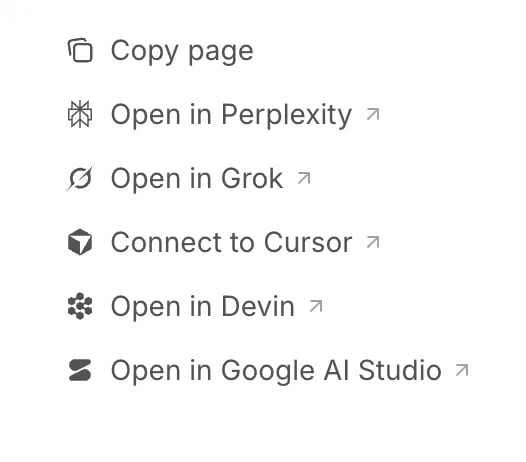
The screenshot below shows the options available from that menu:
The menu includes **Copy page**, and one-click options to open the page in Perplexity, Grok, Devin, Google AI Studio, or Cursor.
You can also use the **Documentation MCP** control in the top navigation bar to copy setup snippets for Cursor, VS Code, Claude, and Claude Code.
## Page content options
**Copy page**
Copies the current page as Markdown. Use this when you want to paste page content into a chat or share it with your team.
## Open in AI tools
The contextual menu includes one-click options to open the current page in a supported AI assistant with the page content pre-loaded:
* **Open in Perplexity**
* **Open in Grok**
* **Connect to Cursor**
* **Open in Devin**
* **Open in Google AI Studio**
Use these when you want quick answers about the page you are reading without copying MCP server URL manually.
## MCP server options
**Copy MCP server URL**
Copies `https://developer.suki.ai/mcp` for manual MCP configuration in your AI tool or editor.
**Connect to Cursor**
Installs the Suki developer documentation MCP server in Cursor in one step.
For copy-ready JSON snippets and setup steps for Cursor, VS Code, Claude, and Claude Code, use the **Documentation MCP** dropdown in the top navigation bar, or refer to [Documentation MCP](/documentation/references/mcp).
The documentation MCP server provides **search** and **get page** tools only. It does not execute Suki API calls on your behalf.
## Additional context for AI tools
Use these URLs when an AI tool needs broader context than a single page:
| Resource | URL | Use when |
| ------------------- | ---------------------------------------------------------- | ------------------------------------------------------------------------------------ |
| Documentation index | [`llms.txt`](https://developer.suki.ai/llms.txt) | You need a list of all documentation pages with titles and descriptions |
| Full documentation | [`llms-full.txt`](https://developer.suki.ai/llms-full.txt) | Your question spans multiple products (APIs, SDKs, webhooks, Form filling, and more) |
| Integration skill | [`skill.md`](https://developer.suki.ai/skill.md) | You are building an agent or assistant that integrates Suki APIs or SDKs |
Install the Suki developer documentation skill from your project:
```bash npm theme={"theme":{"light":"github-dark","dark":"material-theme-darker"}}
npx skills add https://developer.suki.ai
```
## How to use
Open the contextual menu in the TOC sidebar and select **Copy page**. Paste the content into your AI tool and ask your question.
Open the contextual menu and select **Open in Perplexity**, **Open in Grok**, **Connect to Cursor**, **Open in Devin**, or **Open in Google AI Studio**.
Select **Connect to Cursor** or **Copy MCP server URL** from the contextual menu, or use the **Documentation MCP** dropdown in the top navigation bar. Refer to [Documentation MCP](/documentation/references/mcp) for full setup steps.
Use [`llms-full.txt`](https://developer.suki.ai/llms-full.txt) or [`skill.md`](https://developer.suki.ai/skill.md) when your question spans multiple integration paths or products.
Click **Ask AI** in the bottom-right of the page for in-docs help while you browse. For project-level work in Cursor or VS Code, connect the documentation MCP server so your editor can search docs automatically.
## Next steps
Refer to [Documentation MCP](/documentation/references/mcp) for server URL, tools, editor setup, and troubleshooting.
Refer to [Quickstart](/documentation/get-started/quick-start) for the **Using an AI coding tool?** prompt that installs `skill.md` and the MCP server.
Refer to [Support](/documentation/references/support) for FAQs, the in-docs assistant, and Suki support channels.