> ## Documentation Index
> Fetch the complete documentation index at: https://developer.suki.ai/llms.txt
> Use this file to discover all available pages before exploring further.
# Documentation MCP Integration
> Connect Suki developer documentation as an MCP server in your AI code editor to search guides, API reference, and SDK docs while you integrate
The Suki developer documentation is available as an **MCP server** (Model Context Protocol). Connect it to your AI code editor (**Cursor**, **VS Code**, **Claude**) while you work in your local development environment.
This connection lets the LLM in your editor search the Suki knowledge base to find code samples, API references, and guides.
For the contextual menu, copy options, and one-click AI integrations on every page, refer to [AI-optimized documentation](/documentation/references/ai-optimized-documentation).
## Key benefits
Use the documentation as an MCP service in your AI code editor to assist your coding and integration tasks.
Retrieve information from the documentation in your AI code editor to improve the accuracy of the responses.
Reduce the need for manual research and documentation lookup.
Ground responses in current documentation instead of invented endpoints or SDK patterns.
The documentation MCP server provides **search** and **get page** tools only. It does not execute Suki API calls on your behalf.
## MCP server URL
Use the following URL as the custom connector endpoint:
```
https://developer.suki.ai/mcp
```
You can copy this URL from the **Documentation MCP** dropdown in the top navigation bar, from **Copy MCP server URL** in the contextual menu on any page, or from the configuration snippets below.
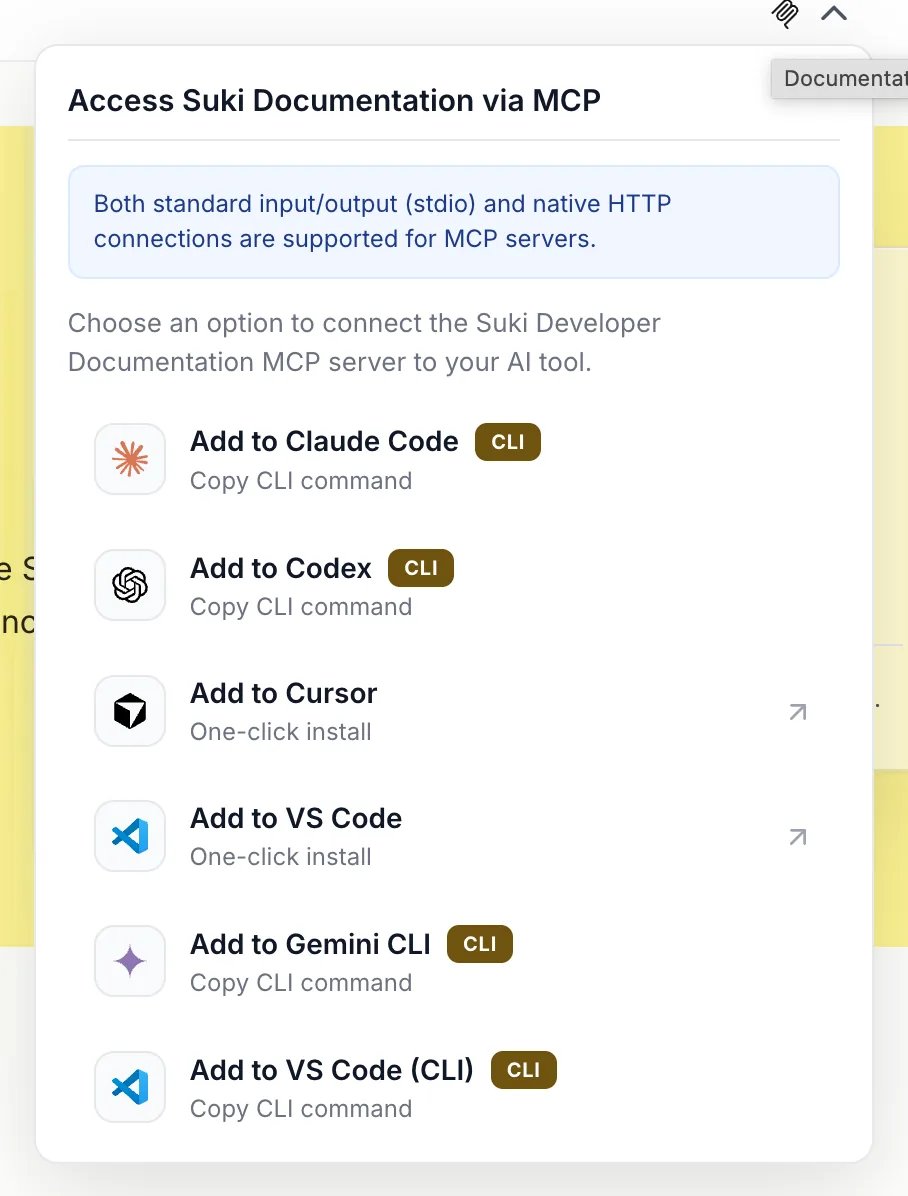
The screenshot below shows the **Documentation MCP** dropdown in the top navigation bar:
The panel lists one-click install actions for Cursor and VS Code, plus copy actions for CLI tools (Claude Code, Codex, Gemini CLI, and others). CLI options show a **CLI** badge. Use **Copy MCP URL** for tools that need the endpoint only.
## MCP server tools
When you connect the Suki developer documentation MCP server, it provides two tools:
1. **Search**: Searches across our documentation to find relevant content, returning snippets with titles and links. Use this when you need to discover information or find pages matching a query.
2. **Get page**: Retrieves the full content of a specific documentation page by its path. Use this when you already know the page path, such as from search results, and need the complete content rather than a snippet.
AI applications such as Cursor and Claude can determine when to use each tool based on the context of the conversation. For example, your AI application might first search our documentation to find relevant pages, then use the get page tool to retrieve the full content of the most relevant result.
### Search parameters
The search tool supports **optional parameters** that your AI applications can use to control and refine search results.
Number of results to return, between 1 and 50. Defaults to 10.
Minimum relevance score between 0 and 1. Only returns results at or above this threshold. Use this to filter out low-relevance matches.
Filter results to a specific documentation version. For example, `v0.7`. Only returns content tagged with the specified version or content available across all versions.
Filter results to a specific language code. For example, `en`, `zh`, or `es`. Only returns content in the specified language or content available across all languages.
### Get page parameters
The get page tool accepts one required parameter:
The page path to retrieve, such as `documentation/webhook/quickstart`. Use page paths returned from search results.
## How to set up MCP integration
1. Use **Command + Shift + P** on Mac or **Ctrl + Shift + P** on Windows to open the command palette.
2. Search for **Open MCP settings** and select **Add custom MCP**. This opens `mcp.json`.
3. Add the following configuration:
```json theme={"theme":{"light":"github-dark","dark":"material-theme-darker"}}
{
"servers": [
{
"url": "https://developer.suki.ai/mcp"
}
]
}
```
Or select **Connect to Cursor** from the contextual menu on any documentation page.
1. Create a `.vscode/mcp.json` file in your project root.
2. Add the following configuration:
```json theme={"theme":{"light":"github-dark","dark":"material-theme-darker"}}
{
"servers": {
"suki-docs": {
"type": "http",
"url": "https://developer.suki.ai/mcp"
}
}
}
```
1. Navigate to the **Connectors** page in Claude settings.
2. Select **Add custom connector**.
3. Set the name to **Suki Developer Documentation MCP server** and the URL to `https://developer.suki.ai/mcp`.
4. Select **Add**.
5. When using Claude, select the attachments button and choose **Suki Developer Documentation MCP server**.
Run the following command:
```bash theme={"theme":{"light":"github-dark","dark":"material-theme-darker"}}
claude mcp add --transport http "Suki Developer Documentation MCP server" https://developer.suki.ai/mcp
```
Use the **Documentation MCP** dropdown in the top navigation bar to copy these snippets without retyping URLs or JSON.
## Test your connection
After configuration, ask your AI tool:
```
What MCP tools do you have available?
```
You should see the Suki documentation search and get page tools listed. Then try:
```
Search the Suki documentation for ambient session webhooks
```
The AI should search and return relevant documentation pages.
## Troubleshooting
Verify the URL is exactly `https://developer.suki.ai/mcp`. Check your internet connection and restart your AI tool after configuration.
Confirm the MCP server was added correctly. Try removing and re-adding the server configuration. Check your AI tool's MCP support documentation.
Try different or more general search terms (for example, "webhook" instead of "session completion webhook payload"). Verify the MCP connection is active.
## Additional context for AI tools
Use these URLs when an AI tool needs broader context than a single page:
| Resource | URL | Use when |
| ------------------- | ---------------------------------------------------------- | ------------------------------------------------------------------------------------ |
| Documentation index | [`llms.txt`](https://developer.suki.ai/llms.txt) | You need a list of all documentation pages with titles and descriptions |
| Full documentation | [`llms-full.txt`](https://developer.suki.ai/llms-full.txt) | Your question spans multiple products (APIs, SDKs, webhooks, Form filling, and more) |
| Integration skill | [`skill.md`](https://developer.suki.ai/skill.md) | You are building an agent or assistant that integrates Suki APIs or SDKs |
Install the skill from your project:
```bash npm theme={"theme":{"light":"github-dark","dark":"material-theme-darker"}}
npx skills add https://developer.suki.ai
```