> ## Documentation Index
> Fetch the complete documentation index at: https://developer.suki.ai/llms.txt
> Use this file to discover all available pages before exploring further.
# Mobile SDK Installation
> Learn how to install and set up the Suki Mobile SDK
To use the Suki Mobile SDK, you need to download the `SukiAmbientCore.framework` file and add it to your Xcode project. Learn how to install and set up the Suki Mobile SDK in this guide.
## Prerequisites
For the rest of this documentation, we will assume you have completed the [Partner onboarding](/documentation/get-started/partner-onboarding) process.
Refer to the [Prerequisites](/mobile-sdk/prerequisites) guide for more information.
## Set up your environment
Follow the steps below to install the **Suki Mobile SDK** and set up your development environment.
Download the `SukiAmbientCore.framework` file.
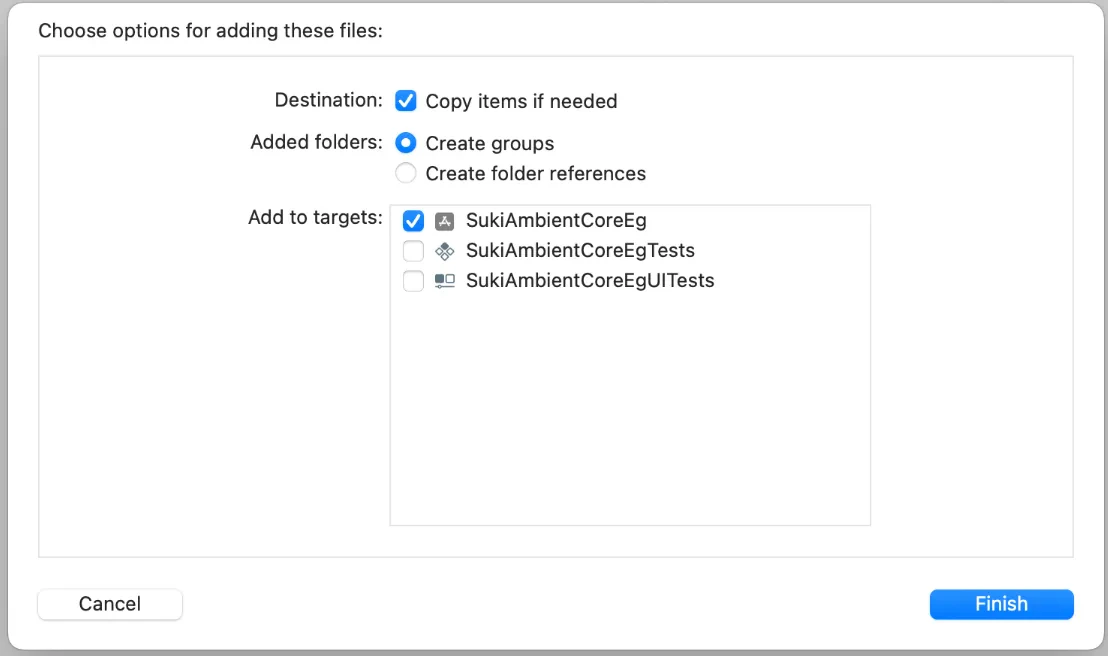
Drag the `SukiAmbientCore.framework` file into your **Xcode project navigator**. In the dialog box that appears, select the **Copy items if needed** checkbox and click **Finish**.
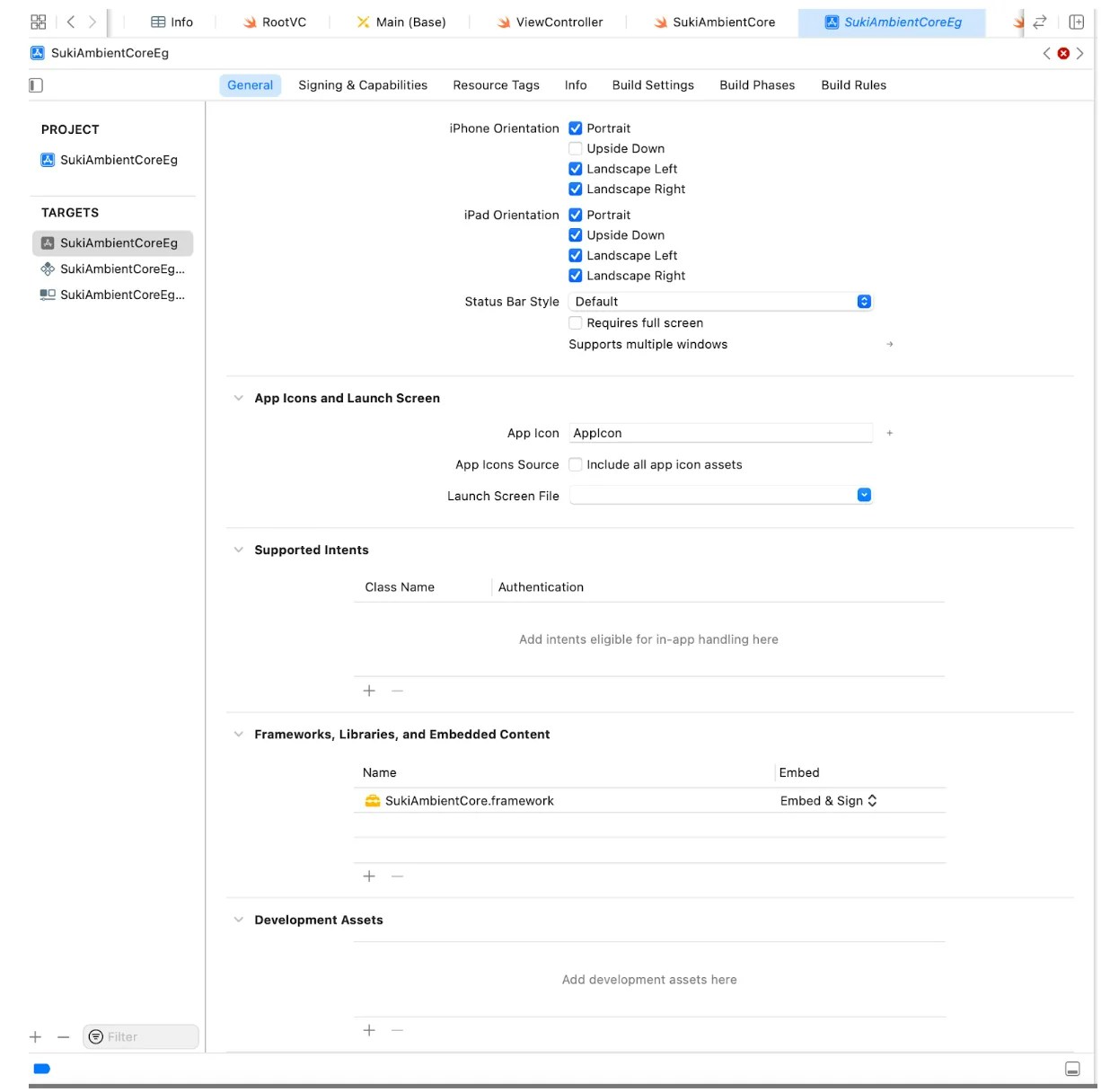
 In your app's target settings, navigate to the **General** tab and find the **Frameworks, Libraries, and Embedded Content** section. Change the setting for `SukiAmbientCore.framework` to **Embed & Sign**.
 Add the `NSMicrophoneUsageDescription` key to your `Info.plist` file. You **must provide** a value for this key that explains to the user why your app needs microphone access.
Apple requires this key and a descriptive string to access the device's microphone for recording conversations.
## Next steps
After you install the SDK, proceed to our [Configuration guide](/mobile-sdk/configuration) to start using the mobile SDK features.
Add the `NSMicrophoneUsageDescription` key to your `Info.plist` file. You **must provide** a value for this key that explains to the user why your app needs microphone access.
Apple requires this key and a descriptive string to access the device's microphone for recording conversations.
## Next steps
After you install the SDK, proceed to our [Configuration guide](/mobile-sdk/configuration) to start using the mobile SDK features.