> ## Documentation Index
> Fetch the complete documentation index at: https://developer.suki.ai/llms.txt
> Use this file to discover all available pages before exploring further.

# Telehealth

> Learn how to enable the telehealth feature in the Suki Web SDK

<Callout title="Updates" color="orange" icon="bell">
  **Updated**

  Added support for **On-device audio capture** in the Web SDK. You can now capture audio from the system audio of the browser window that contains your telehealth call.
</Callout>

<div className="quick-summary-wrapper">
  <div className="quick-summary-header">
    <span className="quick-summary-icon" aria-hidden="true" />

    <span className="quick-summary-title">Quick summary</span>
  </div>

  <div className="quick-summary-content">
    Telehealth sessions allow you to capture audio from different tabs on a browser window for remote patient care. The Web SDK also supports on-device audio capture for care management, telehealth, and VoIP workflows when you share system audio from the browser. This feature is opt-in and disabled by default.

    <br />

    <br />

    The Web SDK supports audio capture from different tabs in the same browser window (with or without a headset). With supported browsers and operating systems, it can also capture on-device audio when the user shares system audio from the browser share dialog.
  </div>

  <div className="quick-summary-footer">
    <span className="quick-summary-footer-icon" aria-hidden="true" />

    <span className="quick-summary-footer-text">Last updated:</span>
    <span className="quick-summary-footer-date">June 2026</span>
  </div>
</div>

Telehealth sessions are a special type of ambient session that you can use for remote patient care. The Suki Web SDK (version `2.1.0` and later) supports capturing audio from different tabs directly from your browser.

The Web SDK now supports **on-device audio capture** when you share system audio from the browser. This helps partners go deeper with **care management**, **telehealth**, and **VoIP** use cases where patient audio plays through the device rather than only through a shared browser tab.
<Note>
  **Compatibility**:

  * **Tab audio**: Capture audio from a browser tab in the same window (with or without a headset).

  * **On-device audio capture**: Share system audio from the browser share dialog. Requires **macOS 14.2+** or **Windows 11**, **Google Chrome 142+**, and the user to enable **Share system audio** (macOS may require a one-time permission in System Settings).

  * **Not supported**: Audio capture from local or native desktop applications (for example, a standalone Zoom or Teams app) outside the browser share flow.
</Note>

## How to enable the Telehealth Audio Capture feature

Enable the Telehealth Audio Capture feature in the Suki Web SDK UI.

<Note> Telehealth Audio Capture feature is an **opt-in setting** and is **disabled by default**.</Note>

To enable Telehealth Audio Capture feature, follow these steps:

<Steps>
  <Step title="Navigate to Settings">
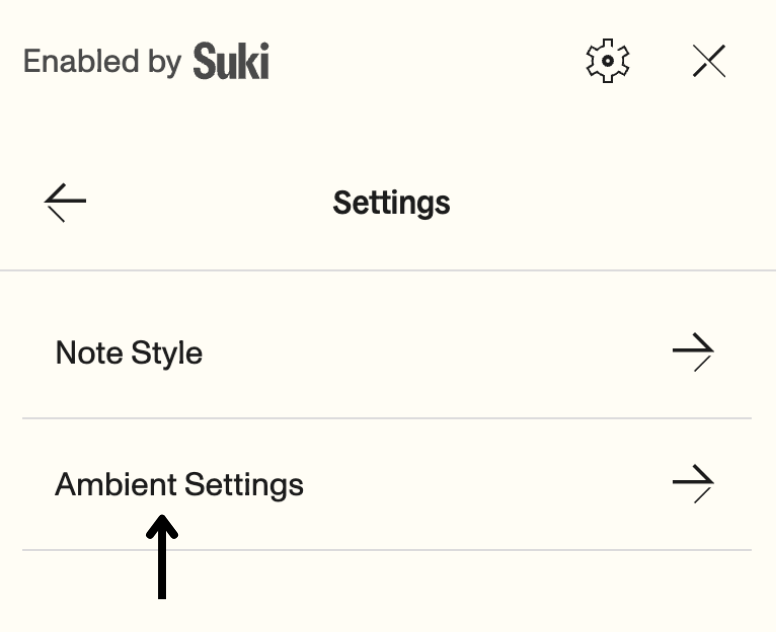
    In the Suki Web SDK UI, navigate to the **Ambient Settings** option.

    <img className="block" src="https://mintcdn.com/suki-1e08f176/jFi2TAJa2DVTTFm5/web-sdk/assets/settings.webp?fit=max&auto=format&n=jFi2TAJa2DVTTFm5&q=85&s=cd152102e9e8f53913c63e5b875fa8fc" alt="Settings" style={{ width: "70%", display: "block", margin: "0 auto", borderRadius: "10px", border: "1px solid #e0e0e0" }} loading="eager" decoding="async" width="776" height="633" data-path="web-sdk/assets/settings.webp" />
  </Step>

  <Step title="Turn on Capture Telehealth Audio">
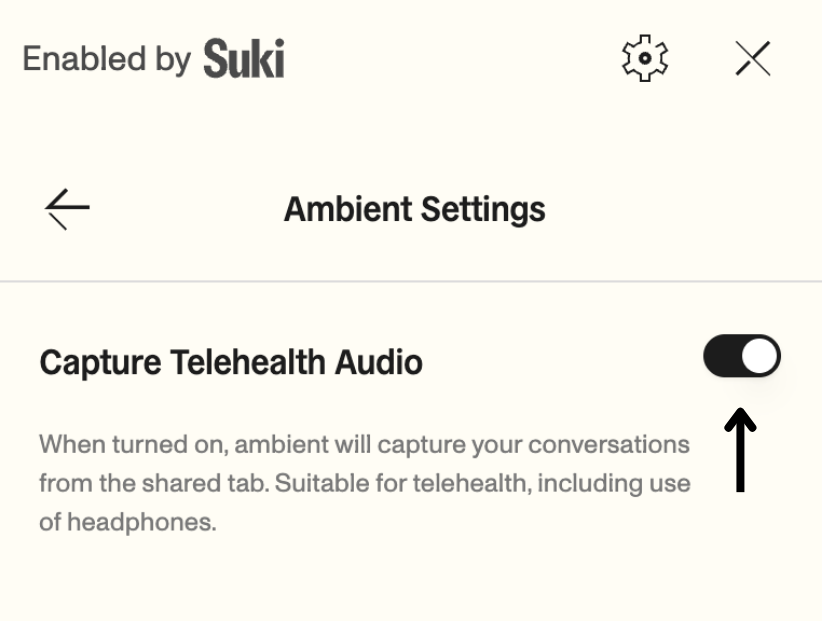
    Turn on the **Capture Telehealth Audio** toggle button.

    <img className="block" src="https://mintcdn.com/suki-1e08f176/jFi2TAJa2DVTTFm5/web-sdk/assets/toggle-on.webp?fit=max&auto=format&n=jFi2TAJa2DVTTFm5&q=85&s=dd6ad5db0723be5f2207adbc9e5fa864" alt="Telehealth Audio Capture" style={{ width: "70%", display: "block", margin: "0 auto", borderRadius: "10px", border: "1px solid #e0e0e0" }} loading="eager" decoding="async" width="823" height="622" data-path="web-sdk/assets/toggle-on.webp" />
  </Step>
</Steps>

## How it works

When you enable Telehealth Audio Capture and click Start Ambient or Re-Ambient, the SDK prompts you to share your screen.

### Tab audio

<Note>
  For tab audio, select the browser tab that contains your telehealth call.
</Note>

In the browser share modal, select the correct **Chrome tab** and enable **Also share tab audio** (or similar).

### On-device audio capture

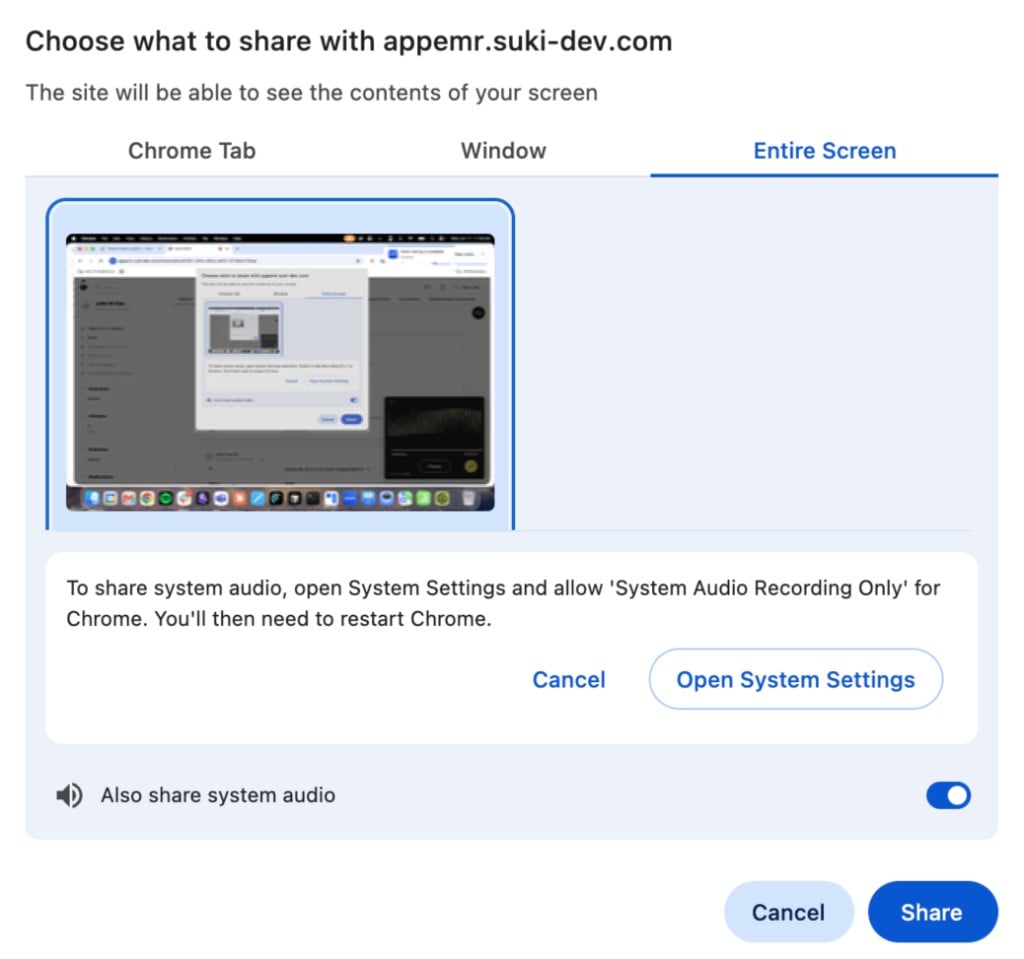
For care management, telehealth, and VoIP workflows, you can capture on-device audio by sharing **Entire Screen** (or the window that contains your call) and enabling **Also share system audio**.

<Note>
  **Requirements for on-device audio capture**:

  * **macOS 14.2+** or **Windows 11**
  * **Google Chrome 142+**
  * **Share system audio** turned on in the browser share dialog

  On **macOS**, Chrome may prompt you to open **System Settings** and allow **System Audio Recording Only** for Chrome. After you enable that permission, restart Chrome and start the ambient session again.
</Note>

<img className="block" src="https://mintcdn.com/suki-1e08f176/JWCBr7FDuYx75ifb/web-sdk/assets/telehealth-system-audio-share.png?fit=max&auto=format&n=JWCBr7FDuYx75ifb&q=85&s=c1ae75b5c09f01d3a1a7613f5720927c" alt="Chrome share dialog on macOS with Entire Screen selected, Also share system audio enabled, and a prompt to allow System Audio Recording Only for Chrome in System Settings." loading="eager" style={{ width: "70%", display: "block", margin: "0 auto", borderRadius: "10px", border: "1px solid #e0e0e0" }} decoding="async" width="1024" height="959" data-path="web-sdk/assets/telehealth-system-audio-share.png" />

<Tip>
  On macOS, select **Entire Screen**, turn on **Also share system audio**, then follow the **Open System Settings** prompt if Chrome asks you to allow **System Audio Recording Only** for Chrome.
</Tip>

### Session behavior

The following are the different states of the ambient session when telehealth audio capture is enabled:

<CardGroup cols={2}>
  <Card title="On Pause" icon="pause">
    If you close the shared tab or click the browser's **Stop Sharing** button, the ambient session will automatically pause.
  </Card>

  <Card title="On Resume" icon="play">
    To restart the session, click **Resume** in the SDK. This action will open the browser's share modal again.
  </Card>
</CardGroup>

<Card title="On Window/Screen Selection" icon="window">
  The SDK uses browser screen-capture APIs for telehealth audio. Select a tab for tab audio, or Entire Screen (or a window) with system audio enabled for on-device audio capture.
</Card>

## Recommendations for partners

For the best compatibility and performance, follow these recommendations:

* Use **Google Chrome 142+** on **macOS 14.2+** or **Windows 11** when you need on-device audio capture.

* Use browser-based telehealth workflows.

* For **tab audio**, select a browser tab and enable **Also share tab audio**.

* For **on-device audio capture**, select **Entire Screen** (or the relevant window), enable **Also share system audio**, and complete any macOS System Settings permission for Chrome.

<Warning>
  On-device audio capture depends on browser and operating system support. Verify the share dialog shows **Also share system audio** and that macOS permissions are enabled before you start an ambient session.
</Warning>

Suki supports **tab audio** and **on-device audio capture** through the browser share dialog. Ensure you select the correct share target and enable the matching audio option when prompted.

## Error handling

<Accordion title="Ambient failed to start">
  **Cause**:
  This error occurs if you did not enable the required audio option in the browser share modal. The SDK requires a tab audio stream or a system audio stream, depending on your share selection.

  **Solution**:
  Start the ambient session again. For tab audio, select the correct browser tab and enable **Also share tab audio**. For on-device audio capture, select **Entire Screen**, enable **Also share system audio**, and on macOS confirm **System Audio Recording Only** is allowed for Chrome in System Settings.
</Accordion>

## Next steps

<Icon icon="file-lines" iconType="solid" /> Refer to [Branding](/web-sdk/guides/branding) guide to learn more about how to brand the Suki Web SDK.