> ## Documentation Index
> Fetch the complete documentation index at: https://developer.suki.ai/llms.txt
> Use this file to discover all available pages before exploring further.

# Medication Orders Overview

> Learn how Medication orders work in the Headed Web SDK, key benefits, use cases, and how to enable this capability

<div className="quick-summary-wrapper">
  <div className="quick-summary-header">
    <span className="quick-summary-icon" aria-hidden="true" />

    <span className="quick-summary-title">Quick summary</span>
  </div>

  <div className="quick-summary-content">
    Medication orders in the Headed Web SDK generate structured medication lists from an ambient session and display them in the built-in Medication orders note section UI of the Headed Web SDK note page.
    To enable this capability, add the LOINC code `52471-0` in the `ambientOptions.sections` array. After the provider submits the note, the SDK returns an orders JSON payload that your application can send to the EHR.
  </div>

  <div className="quick-summary-footer">
    <span className="quick-summary-footer-icon" aria-hidden="true" />

    <span className="quick-summary-footer-text">Last updated:</span>
    <span className="quick-summary-footer-date">July 2026</span>
  </div>
</div>

The Suki Web SDK now natively supports Medication orders generation during ambient clinical sessions. During an ambient session, the Web SDK identifies recommended medications from the clinician's conversation, links them to active problems in the note, and displays them in the built-in **Medication orders** section for review.

Providers review the orders directly within the user interface and then submit the note. When the provider submits the note, the Suki Web SDK returns structured order data within the standard note submission payload.
<Note>
  **Configuration required**

  To enable the Medication orders capability, you must provide the LOINC code `52471-0` in the `ambientOptions.sections` array. Learn more in [Enable Medication orders](#enable-medication-orders).
</Note>

## Prerequisites

Before enabling Medication orders, confirm the following:

* **Problems in the session** - To link orders to problems in the note, enable [Problem-Based Charting (PBC)](/web-sdk/guides/ambient-problem-based-charting) by passing an Assessment & Plan, Assessment, or Plan LOINC section and marking one section with `isPBNSection: true`.
* **ambient session** - Create and start an ambient session using [Create session](/web-sdk/guides/ambient-implementation).

## Payload structure

After the provider reviews the orders and submits the note, the Web SDK returns the generated `orders` object in the standard note submission payload. The JSON response body includes the following parameters:

<ResponseField name="orders" type="object">
  Structured orders returned on note submission. Includes medication details, dosage instructions, duration, linked problems, and more.
</ResponseField>

<Note>
  The Web SDK does not submit orders directly to the EHR. Your application is responsible for validating and submitting orders to the EHR, the same way you persist note `contents`. Refer to [Medication orders payload structure](/web-sdk/medication-orders/payload-structure) for the note submission payload and field definitions.
</Note>

## Medication order capabilities

<CardGroup cols={2}>
  <Card title="Ambient-Based Order Generation" icon="microphone">
    The Web SDK automatically identifies and generates orders from the clinician's spoken conversation during an ambient clinical session.
  </Card>

  <Card title="Built-In Review UI" icon="user">
    Providers review and complete generated orders within a dedicated, built-in section on the clinical note page.
  </Card>

  <Card title="Inline Validation for Missing Fields" icon="file-text">
    When required ordering data is missing, the Web SDK displays inline dropdown menus within the interface. This allows the provider to complete all necessary details before submitting the final note.
  </Card>

  <Card title="Automatic Deduplication" icon="file-text">
    The Web SDK automatically deduplicates generated orders against existing encounter orders from your Electronic Health Record (EHR) pre-charting data. The system removes exact matches based on medication name, form, and strength before displaying the list to the provider.
  </Card>

  <Card title="Problem-Based Linking" icon="file-text">
    Providers can associate a medication order directly with a specific problem section within the clinical note when you enable Problem-Based Charting (PBC).
  </Card>

  <Card title="Simple Configuration via LOINC" icon="file-text">
    You can activate this feature for any clinical session. To turn on Medication orders, pass the LOINC code `52471-0` in the `ambientOptions.sections` array.
  </Card>

  <Card title="Structured JSON Payload" icon="file-text">
    The Web SDK returns the orders in the same note submission payload as `noteId`, `encounterId`, and `contents` so you can parse and save the data to your EHR easily.
  </Card>
</CardGroup>

## Common integration patterns and use cases

Design the integration around how generated orders move from the ambient session through provider review and into your EHR.

<CardGroup cols={2}>
  <Card title="Generate Orders from the Visit" icon="prescription">
    Add LOINC `52471-0` to `ambientOptions.sections`. The Web SDK generates medication orders from the ambient conversation, displays them for review, and returns them in the note submission payload.
  </Card>

  <Card title="Complete Missing Order Data" icon="list-check">
    Let providers complete missing fields through the built-in controls. Read completed orders from `values` and any remaining incomplete orders from `partial_values`.
  </Card>

  <Card title="Link Orders to Problems" icon="link">
    Configure a PBC section with `isPBNSection: true` alongside LOINC `52471-0`. Providers can associate generated orders with problem sections before submitting the note.
  </Card>

  <Card title="Persist Orders to the EHR" icon="database">
    Handle `orders` with the submitted note, validate the structured data, and map it into your EHR workflow. The Web SDK returns the payload but does not write orders to the EHR.
  </Card>
</CardGroup>

## Enable Medication orders

To enable the Medication orders capability in the Suki Web SDK, pass the LOINC code `52471-0` in the `ambientOptions.sections` array. You can pass this parameter when you mount the Web SDK or when you call the `AmbientOptions` method. The section name displays as **Medication** in the user interface.

### Test Medication orders

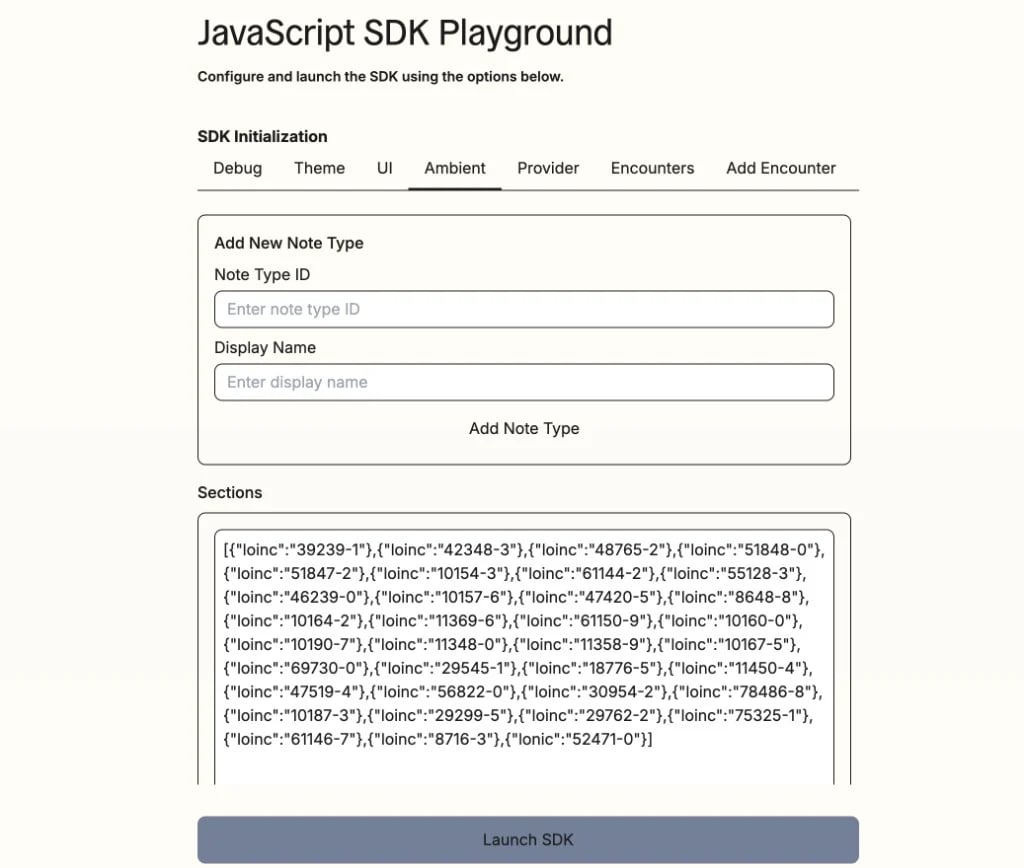
To test this feature in the Web SDK Playground, navigate to the **ambient** tab and add `{ "loinc": "52471-0" }` to the **Sections** field.

<Tip>
  For a full list of supported clinical note sections, refer to [Note sections](/documentation/concepts/ambient-clinical-notes/note-sections).
</Tip>

***

<img src="https://mintcdn.com/suki-1e08f176/zo-CLI6y7TO8L9Sf/web-sdk/assets/loinc-routing-playground-sections.webp?fit=max&auto=format&n=zo-CLI6y7TO8L9Sf&q=85&s=ebd011fa10dbe36bb2a770c690ccbb30" alt="JavaScript SDK Playground ambient tab with LOINC codes in the Sections field" style={{ width: "50%", height: "60%", display: "center", margin: "0 auto", borderRadius: "12px", boxShadow: "0 0 10px 0 rgba(0, 0, 0, 0.1)" }} width="1024" height="868" data-path="web-sdk/assets/loinc-routing-playground-sections.webp" />

***

Alternatively, you can configure this directly in your application code using the following code configurations:

<View title="JavaScript" icon="js">
  ```js JavaScript theme={"theme":{"light":"github-dark","dark":"material-theme-darker"}}
  sdkClient.mount({
    rootElement: document.getElementById("suki-root"),
    encounter: encounterDetails,
    ambientOptions: {
      sections: [
        { loinc: "51848-0", isPBNSection: true }, // Assessment (PBC)
        { loinc: "10164-2" }, // History of Present Illness
        { loinc: "29545-1" }, // Physical Exam
        { loinc: "52471-0" }, // Medication Orders
      ],
    },
  });
  ```
</View>

<View title="React" icon="react">
  ```jsx React theme={"theme":{"light":"github-dark","dark":"material-theme-darker"}}
  <SukiAssistant
    encounter={currentEncounter}
    ambientOptions={{
      sections: [
        { loinc: "51848-0", isPBNSection: true },
        { loinc: "10164-2" },
        { loinc: "29545-1" },
        { loinc: "52471-0" },
      ],
    }}
  />
  ```
</View>

<Note>
  Combine the LOINC code `52471-0` with your other note sections and a PBC section when you need Problems in the same session.
</Note>

## Provider workflow

After the ambient session completes, the Web SDK displays a **Medication section** on the clinical note page. If you enable Problem-Based Charting (PBC), this section appears below the problem sections.
This user interface is built directly into the headed Web SDK note page.

During the review process, providers can perform the following actions:

* **Review medications from the visit:** View medication orders that the Web SDK generates from the ambient session clinical conversation.
* **Link orders to problems:** Use the problem selector to associate a medication order with a specific problem section in the note.
* **Complete missing fields inline:** Use inline dropdown menus within the Medication orders section to fill in missing required data.
* **Submit the note:** Select the submit button to send the note. When the provider submits the note, the SDK returns the note contents and structured order data directly to your application.

### Inline editing

Each generated medication order can include an [RxNorm RxCUI](https://www.nlm.nih.gov/research/umls/rxnorm/overview.html) value in the `medication_code` parameter. The presence of this code determines whether a provider can edit the order details inline:

| RxCUI status on the order | Provider can edit the order inline |
| :------------------------ | :--------------------------------- |
| **Present**               | No                                 |
| **Missing or empty**      | Yes                                |

<Note>
  Non-edit workflow
  The Web SDK uses a non-edit workflow by default. The interface does not include a full-screen editing panel. Providers must complete all missing fields using the inline controls within the Medication orders section.
</Note>

## Error handling

If order generation fails or orders are missing required fields, the Web SDK returns the **`ORD_SDK_001`** or **`ORD_SDK_003`** error codes. Refer to [Medication orders error codes](/web-sdk/medication-orders/error-codes) for the error codes and descriptions.

## Next steps

<Icon icon="file-lines" iconType="solid" /> Learn about the [Medication orders payload structure](/web-sdk/medication-orders/payload-structure) to parse and save orders to your EHR.

<Icon icon="file-lines" iconType="solid" /> Learn about the [Medication orders error codes](/web-sdk/medication-orders/error-codes) to handle errors during Medication orders generation.

<Icon icon="file-lines" iconType="solid" /> Learn about [Problem-Based Charting](/web-sdk/guides/ambient-problem-based-charting) to enable Problem-Based Charting (PBC) in your Web SDK integration.
