

Launching Dictation
The entry point is entirely part of your UI. You can use a button, an icon, a menu item, or a keyboard shortcut. To launch the session for a specific field, your code must callshow() in JavaScript or mount the Dictation component in React.
Managing the Dictation interface
Once the session is open, the Suki Dictation SDK displays the Dictation UI in a hosted iframe inside therootElement you provide. The UI includes the microphone, Submit, and Cancel controls.
When Content Rewrite is available, clinicians can also select text with the microphone off and use the rewrite tooltip to modify the selection. Refer to Content Rewrite for more details.
Requirements
Keep the following requirements in mind to ensure the interface displays correctly:- Container sizing: The iframe sizes itself to the container you provide.
- Dimensions: You must provide a specific height and width for the interface to appear correctly.
- Data handling: You receive transcript text through defined callbacks.
- Troubleshooting: If the interface does not appear, check your layout and Content Security Policy (CSP) settings.
You can place the button or icon anywhere in your application that fits your design. These screens are only examples.
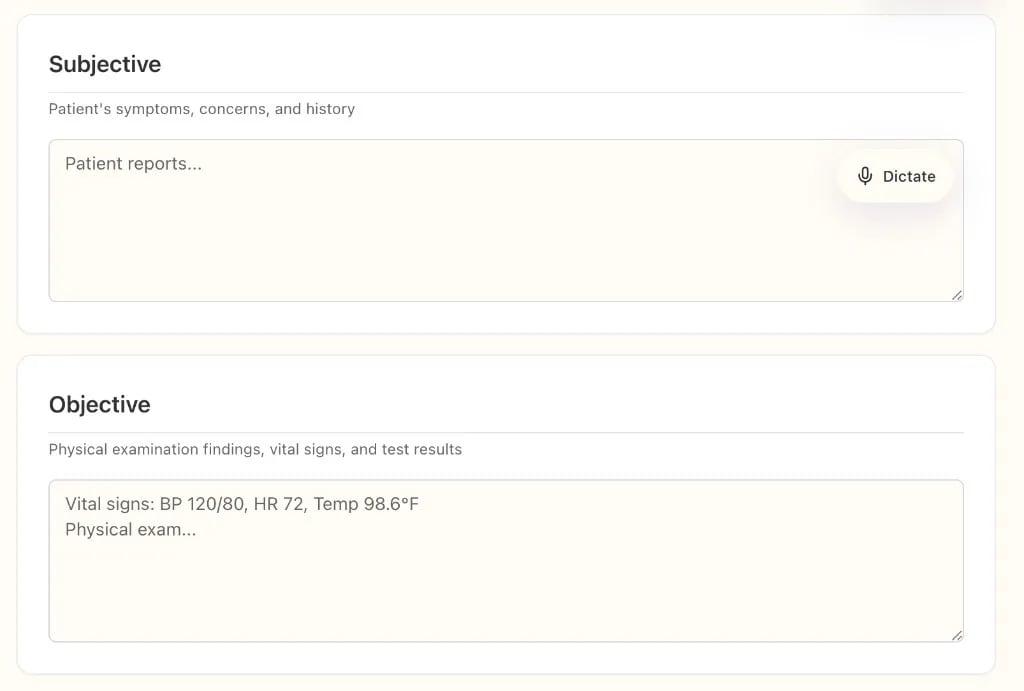
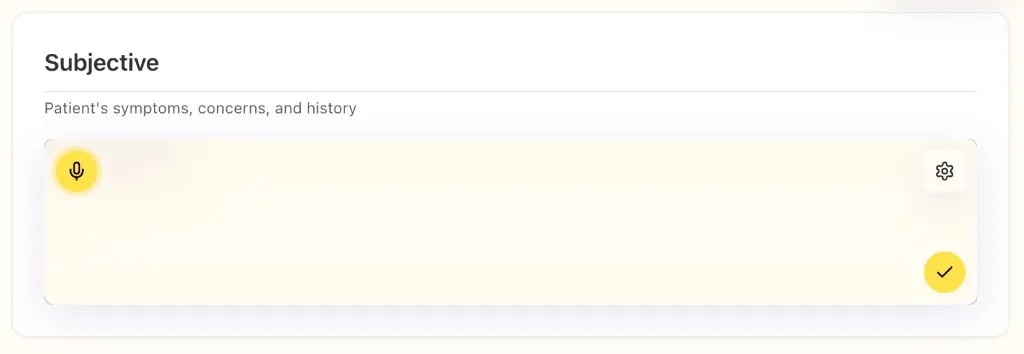
When to choose in-field mode
Use in-field mode when:- You embed Dictation for a specific text field (or editor) and you design the entry point yourself (for example a Dictation button, icon, or toolbar action that calls
show()or mounts<Dictation>). - You want Suki’s Dictation overlay on the field’s container (
rootElement), so mic, submit, and cancel sit with that target instead of a standalone floating panel.
For Dictation that is not bound to a single input, use Scratchpad mode instead.
How to configure in-field mode
For in-field Dictation you configure three things:mode, rootElement, and fieldId. Together they tell the SDK which layout to use, where to put the iframe, and how to label this session in callbacks.
Mode
Setmode to the string "in-field" so the SDK uses the overlay-on-container layout instead of scratchpad.
- JavaScript: include
mode: "in-field"in the object you pass toDictationClient.show(). - React: set
mode="in-field"on<Dictation>.
Mode configuration
Root element
SetrootElement to know which element on your page should contain the Dictation iframe. The SDK inserts the iframe inside that element. It is not the
answer to “which input gets the text”; you apply transcript text in callbacks (and often target your field by fieldId or your own state).
Recommended pattern:
Use a parent <div> that wraps the notes area, and pass that div as rootElement. Pass document.getElementById("…") (or a ref in React) for that wrapper, not for the <textarea> or <input> alone.
Example markup and how it maps to rootElement:
The wrapper and textarea can be structured however your layout needs; the important part is that
rootElement points at the element that should host the iframe, not at the textarea node.
Refer to Configuration for every
ShowOptions field and matching React props.
Field ID
fieldId is a string you invent to name this Dictation session. Every callback sends it back with text, so you know which field the result belongs to if you have several on the page. It does not have to match a DOM id,
but using the same value as your input’s id is a simple pattern.
Each open Dictation instance should use a stable, unique fieldId. Examples for SOAP-style sections: soap.subjective, soap.objective, soap.assessment, soap.plan.
Refer to Callback contract payload shape for more details.
How to use in-field mode
You decide how users __start__the in-field Dictation mode for a specific field. You can use a Dictation button, a link, an icon, or any control that callsshow() or mounts <Dictation>. After they start, Suki draws the Dictation UI inside the iframe: microphone, submit, cancel, and the rest. You do not need to rebuild those controls yourself. You receive text and events through onSubmit, onCancel, and optionally onDraft.