

Context menu access
On any documentation page, open the contextual menu in the table of contents (TOC) sidebar. The screenshot below shows the options available from that menu: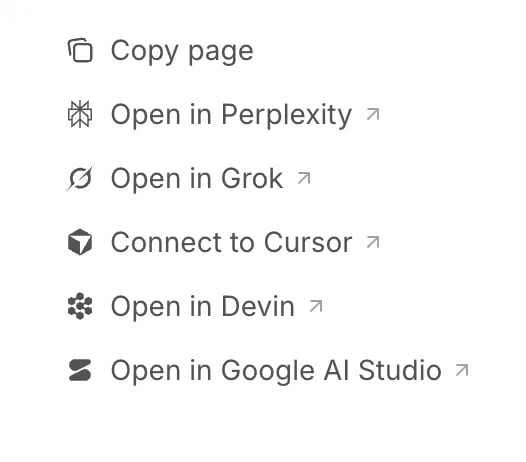
Page content options
Copy page Copies the current page as Markdown. Use this when you want to paste page content into a chat or share it with your team.Open in AI tools
The contextual menu includes one-click options to open the current page in a supported AI assistant with the page content pre-loaded:- Open in Perplexity
- Open in Grok
- Connect to Cursor
- Open in Devin
- Open in Google AI Studio
MCP server options
Copy MCP server URL Copieshttps://developer.suki.ai/mcp for manual MCP configuration in your AI tool or editor.
Connect to Cursor
Installs the Suki developer documentation MCP server in Cursor in one step.
For copy-ready JSON snippets and setup steps for Cursor, VS Code, Claude, and Claude Code, use the Documentation MCP dropdown in the top navigation bar, or refer to Documentation MCP.
The documentation MCP server provides search and get page tools only. It does not execute Suki API calls on your behalf.
Additional context for AI tools
Use these URLs when an AI tool needs broader context than a single page:
Install the Suki developer documentation skill from your project:
npm
How to use
Copy a Page for a Quick Question
Open the contextual menu in the TOC sidebar and select Copy page. Paste the content into your AI tool and ask your question.
Open the Page in an AI Assistant
Open the contextual menu and select Open in Perplexity, Open in Grok, Connect to Cursor, Open in Devin, or Open in Google AI Studio.
Connect the MCP Server for Ongoing Work
Select Connect to Cursor or Copy MCP server URL from the contextual menu, or use the Documentation MCP dropdown in the top navigation bar. Refer to Documentation MCP for full setup steps.
Load Broader Context When Needed
Use
llms-full.txt or skill.md when your question spans multiple integration paths or products.Next steps
Refer to Documentation MCP for server URL, tools, editor setup, and troubleshooting. Refer to Quickstart for the Using an AI coding tool? prompt that installsskill.md and the MCP server.
Refer to Support for FAQs, the in-docs assistant, and Suki support channels.