

What the MCP server does not do
The MCP server works only with published documentation, so you can connect it without an API key. It never calls Suki product APIs or reads partner data, and your integration still authenticates those API calls with a Partner Token and Suki Token.MCP server URL
Use this URL as the custom connector endpoint:MCP server URL
https://developer.suki.ai/.well-known/mcp (and /.well-known/mcp.json), and read its tool list without connecting from /.well-known/mcp/server-card.json. Prefer the public URL above when you configure a client manually.
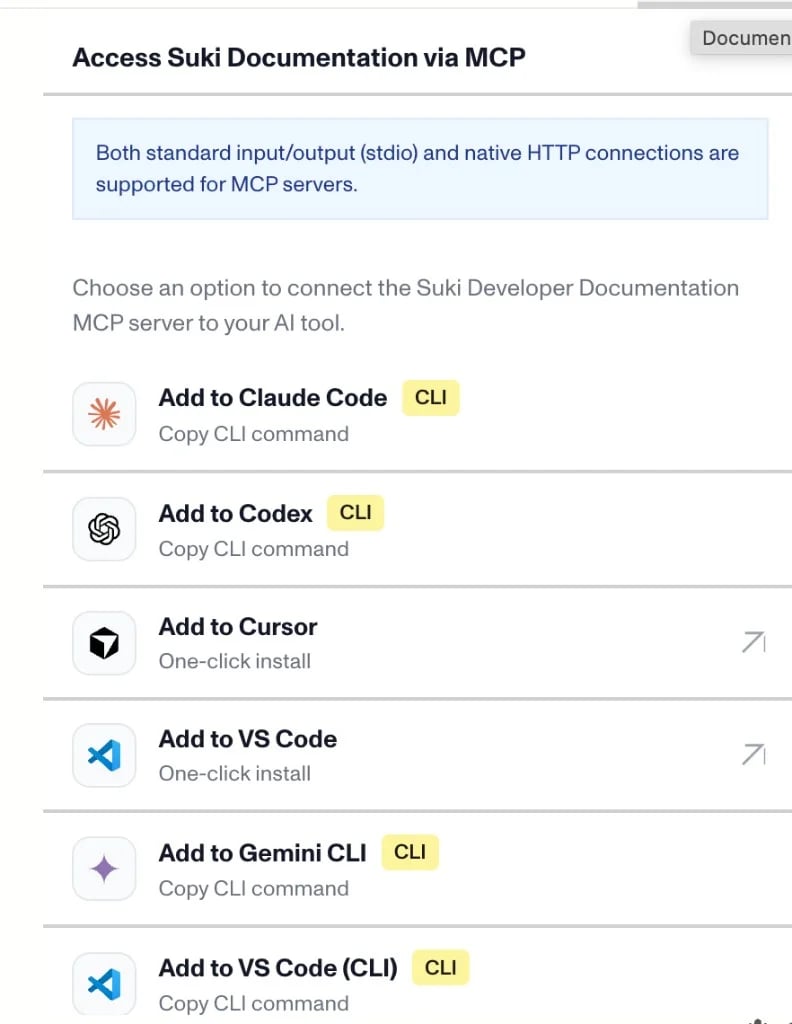
The screenshot below shows the Documentation MCP dropdown:
How the MCP server works
When an AI application connects to the Suki documentation MCP server, it can search indexed site content and retrieve full pages as Markdown while it answers your prompt. That keeps answers aligned with what is published ondeveloper.suki.ai.
- AI applications can search proactively while generating a response, even if you did not ask them to search.
- They choose which tool to call from conversation context and relevance to Suki docs.
- Each tool call runs during generation, so the model can use up-to-date documentation.
MCP server tools
Connected agents can use the following tools:- Search (
search_suki): Searches across the site and returns snippets with titles and links. Use this to find matching pages. - Query docs filesystem (
query_docs_filesystem_suki): Reads a virtual documentation filesystem with shell-style commands (rg,head,cat,tree, and similar). Use this to pull exact sections or full pages, including the Partner API OpenAPI spec at/openapi/api-reference/openapi.json. - Submit feedback (
submit_feedback): Reports a page that is incorrect, outdated, confusing, or incomplete. Mintlify records that as unhelpful feedback for the docs team.

 Search and query docs filesystem only read published pages, and their MCP annotations mark them as read-only, so clients that honor those annotations can run them without asking you to approve each call. Submit feedback is the only tool that sends anything back, and agents use it only when they find a problem with a page.
The server also exposes published
skill.md files as MCP resources for discovery. To install them in your project, refer to Agent skills.
How to set up MCP integration
- Cursor
- VS Code
- Claude
- Claude Code
- Codex

Open MCP Settings in Cursor
- Use Command + Shift + P on Mac or Ctrl + Shift + P on Windows to open the command palette.
- Search for Open MCP settings and select Add custom MCP. This opens
mcp.json. - Add the following configuration:

Test your connection
After configuration, ask your AI tool:Prompt
Prompt
https://sdp.suki-stage.com with a link to a Suki docs page. If the agent answers without a citation, it did not use the MCP server.
Using multiple MCP servers
You can connect several MCP servers in one AI tool. Connected servers do not inject content until the model calls a search or read tool.- Connect only the servers relevant to your current work.
- Be specific in prompts so the model searches the right server.
- Disconnect servers you are not using to reduce context usage.
Troubleshooting
MCP Server Not Connecting

MCP Server Not Connecting
Verify the URL is exactly
https://developer.suki.ai/mcp. Check your internet connection and restart your AI tool after configuration. If your tool does not support MCP, give it a Markdown URL for the page you need instead.Search or Filesystem Tools Not Available

Search or Filesystem Tools Not Available
Confirm the MCP server was added correctly. Try removing and re-adding the server configuration. Check your AI tool’s MCP support documentation. After you connect, ask the model which tools it has and look for
search_suki and query_docs_filesystem_suki.Search Returns No Results

Search Returns No Results
Try different or more general search terms (for example, “webhook” instead of “session completion webhook payload”). Verify the MCP connection is active. Pages marked
noindex are not available through search.Rate Limit Errors

Rate Limit Errors
If the MCP server returns HTTP
429 Too Many Requests, wait and retry. Mintlify applies per-user and per-site hourly limits on search and filesystem tools. Most clients recover automatically within an hour.