

Key benefits
Accelerate your development
Use the documentation as an MCP service in your AI code editor to assist your coding and integration tasks.
Improve your LLM's responses
Retrieve information from the documentation in your AI code editor to improve the accuracy of the responses.
Reduce manual research
Reduce the need for manual research and documentation lookup.
Reduce LLM hallucinations
Ground responses in current documentation instead of invented endpoints or SDK patterns.
The documentation MCP server provides search and get page tools only. It does not execute Suki API calls on your behalf.
MCP server URL
Use the following URL as the custom connector endpoint: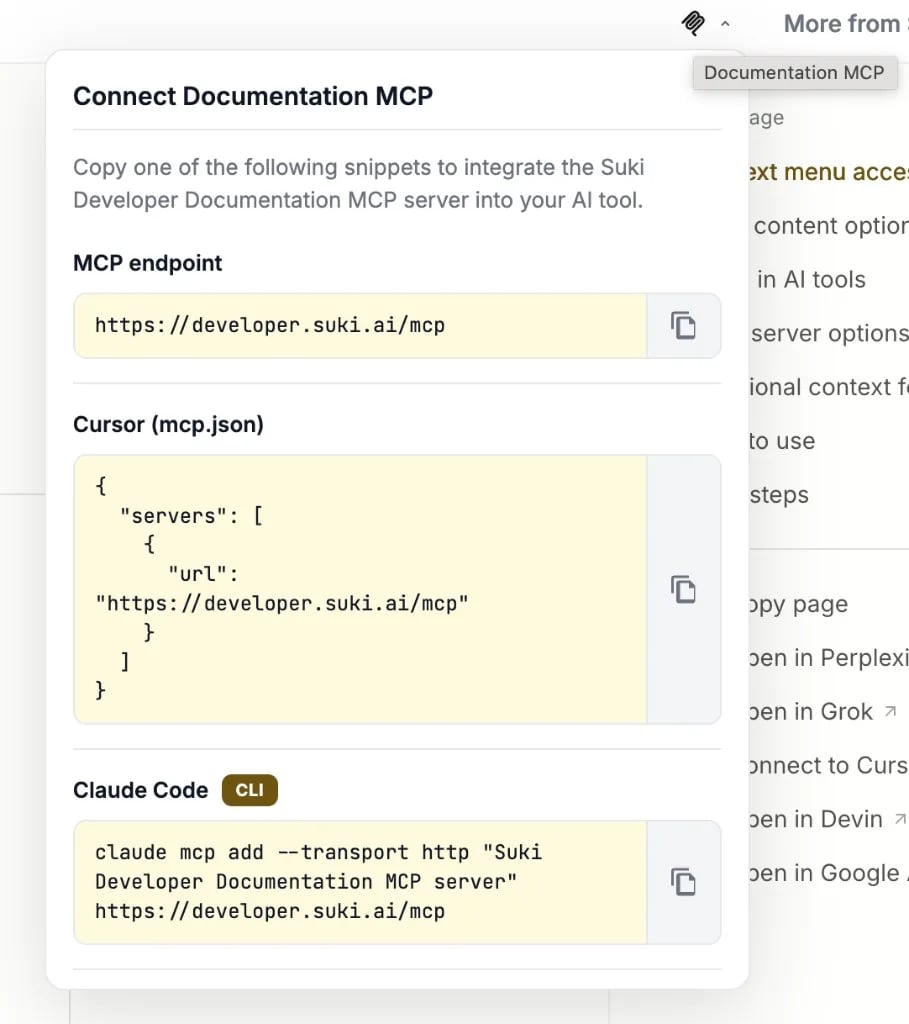
mcp.json), Claude Code, VS Code (.vscode/mcp.json), and Claude (custom connector). Select the copy button next to each snippet to paste it into your editor or terminal.
MCP server tools
When you connect the Suki developer documentation MCP server, it provides two tools:- Search: Searches across our documentation to find relevant content, returning snippets with titles and links. Use this when you need to discover information or find pages matching a query.
- Get page: Retrieves the full content of a specific documentation page by its path. Use this when you already know the page path, such as from search results, and need the complete content rather than a snippet.
Search parameters
The search tool supports optional parameters that your AI applications can use to control and refine search results.Get page parameters
The get page tool accepts one required parameter:The page path to retrieve, such as
documentation/webhook/quickstart. Use page paths returned from search results.How to set up MCP integration
- Cursor
- VS Code
- Claude
- Claude Code
Open MCP settings in Cursor
- Use Command + Shift + P on Mac or Ctrl + Shift + P on Windows to open the command palette.
- Search for Open MCP settings and select Add custom MCP. This opens
mcp.json. - Add the following configuration:
Test your connection
After configuration, ask your AI tool:Troubleshooting
MCP server not connecting
MCP server not connecting
Verify the URL is exactly
https://developer.suki.ai/mcp. Check your internet connection and restart your AI tool after configuration.Search or get page tools not available
Search or get page tools not available
Confirm the MCP server was added correctly. Try removing and re-adding the server configuration. Check your AI tool’s MCP support documentation.
Search returns no results
Search returns no results
Try different or more general search terms (for example, “webhook” instead of “session completion webhook payload”). Verify the MCP connection is active.
Additional context for AI tools
Use these URLs when an AI tool needs broader context than a single page:| Resource | URL | Use when |
|---|---|---|
| Documentation index | llms.txt | You need a list of all documentation pages with titles and descriptions |
| Full documentation | llms-full.txt | Your question spans multiple products (APIs, SDKs, webhooks, form filling, and more) |
| Integration skill | skill.md | You are building an agent or assistant that integrates Suki APIs or SDKs |
npm