

UpdatedAdded support for On-device audio capture in the Web SDK. You can capture system audio through the browser share dialog, including audio from desktop call apps such as Zoom or Teams when Share system audio is enabled.
2.1.0, the Suki Web SDK supports browser tab audio capture and system audio capture, making it possible to transcribe and generate clinical notes from remote patient encounters without requiring a physical microphone as the primary audio source.
Compatibility
- Browser tab audio: Capture audio from a browser tab in the same Chrome window, with or without a headset. Use this option when the telehealth session runs in Chrome.
- On-device audio capture: Capture system audio by sharing Entire Screen or the call window from the browser’s screen sharing dialog with Share system audio enabled. This allows the SDK to capture audio from desktop applications such as Zoom and Microsoft Teams when their audio is played through the device.
- Requirements: macOS 14.2 or later or Windows 11, Google Chrome 142 or later, and Share system audio enabled. On macOS, users may need to grant a one-time system permission.
- Desktop call applications: Zoom, Microsoft Teams, and similar desktop applications are supported only through on-device audio capture. The Web SDK does not integrate directly with desktop application APIs. If the user does not share system audio or skips the browser’s screen sharing dialog, the SDK cannot capture audio from standalone desktop applications.
Common integration patterns and use cases
Use the following integration patterns based on where the telehealth audio originates:Capture Audio from a Browser Tab
If the telehealth visit runs in Chrome, share the browser tab that contains the call and enable Also share tab audio in the browser share dialog.
Capture System Audio
If the telehealth visit runs outside the browser, share Entire Screen (or the application window) and enable Also share system audio. This requires Chrome 142 or later on macOS 14.2+ or Windows 11. On macOS, Chrome must also have System Audio Recording permission.
Capture Zoom or Teams Desktop Audio
For Zoom, Microsoft Teams, and other desktop call applications, use system audio capture instead of tab audio. Share Entire Screen (or the application window) and enable Also share system audio.
Resume After Sharing Stops
If screen or tab sharing ends, the Ambient session automatically pauses. Resume the session in the SDK to reopen the browser share dialog and continue capturing audio.
How to enable the Telehealth Audio Capture feature
Enable the Telehealth Audio Capture feature in the Suki Web SDK UI. Telehealth Audio Capture feature is an opt-in setting and is disabled by default.
1
Navigate to Settings
In the Suki Web SDK UI, navigate to the Ambient Settings option.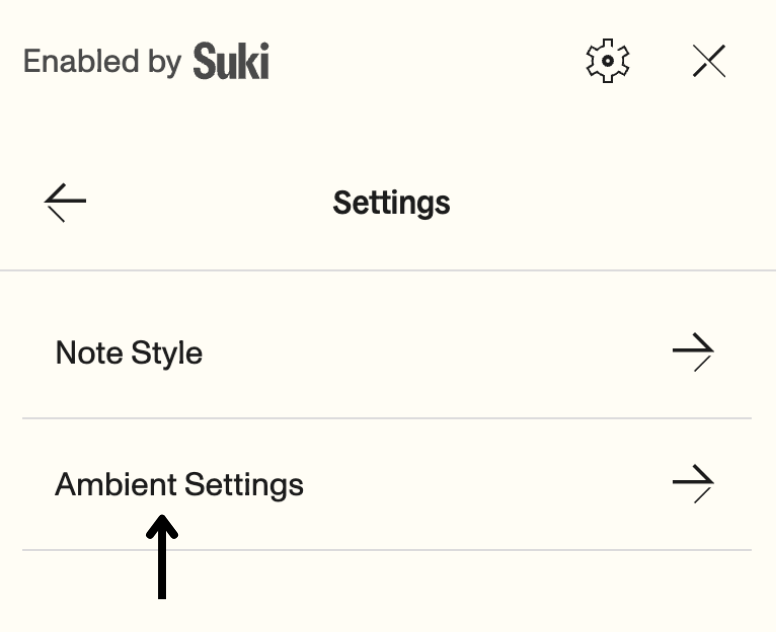
2
Turn on Capture Telehealth Audio
Turn on the Capture Telehealth Audio toggle button.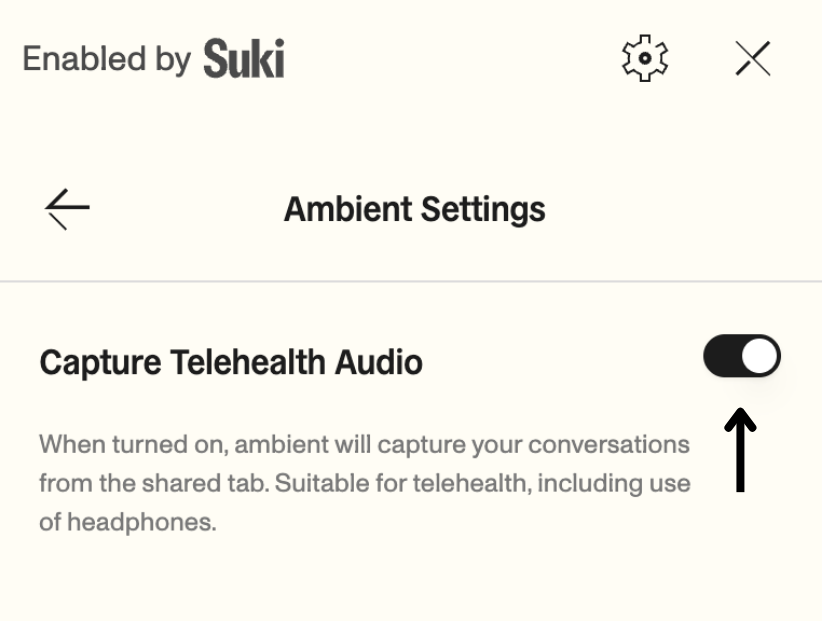
How Telehealth Audio Capture works
When you enable Telehealth Audio Capture and click Start ambient or Re-ambient, the SDK prompts you to share your screen.Tab audio
For tab audio, select the browser tab that contains your telehealth call.
On-device audio capture
Use on-device audio capture for care management, telehealth, and VoIP workflows when the call runs outside Chrome, including desktop applications such as Zoom and Microsoft Teams, or when patient audio plays through the device rather than a browser tab. Share Entire Screen (or the application window that contains the call) and enable Also share system audio in the browser share dialog.Requirements for on-device audio capture:
- macOS 14.2+ or Windows 11.
- Google Chrome 142+.
- Share system audio turned on in the browser share dialog.
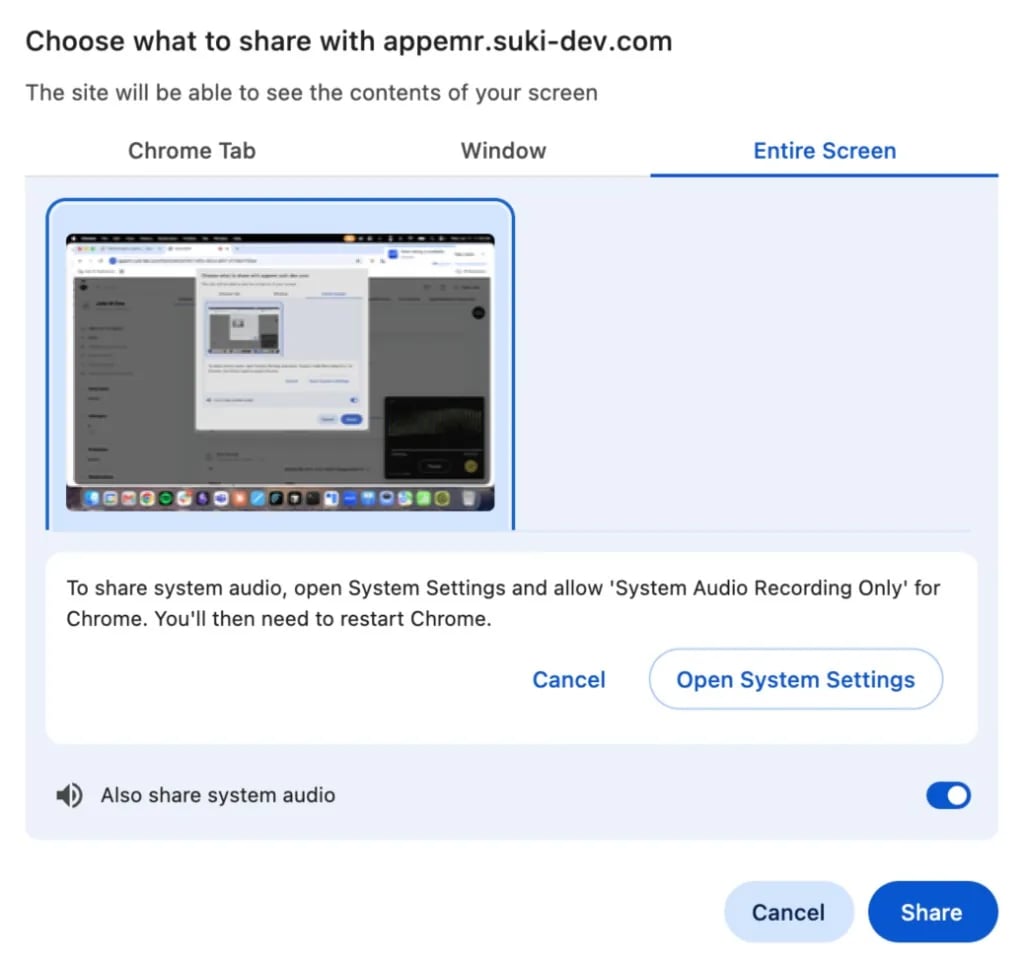
Session behavior
The following are the different states of the ambient session when telehealth audio capture is enabled:On Pause
If you close the shared tab or click the browser’s Stop Sharing button, the ambient session will automatically pause.
On Resume
To restart the session, click Resume in the SDK. This action will open the browser’s share modal again.
On Window/Screen Selection
The SDK uses browser screen-capture APIs for telehealth audio. Select a tab for tab audio, or Entire Screen (or a window) with system audio enabled for on-device audio capture.
Recommendations for partners
For the best compatibility and performance, follow these recommendations:- Use Google Chrome 142+ on macOS 14.2+ or Windows 11 when you need on-device audio capture.
- Prefer tab audio when the telehealth call runs in Chrome. Use on-device audio capture when the call runs in a desktop app such as Zoom or Teams.
- For tab audio, select a browser tab and enable Also share tab audio.
- For on-device audio capture, select Entire Screen (or the relevant window), enable Also share system audio, and complete any macOS System Settings permission for Chrome.
Error handling
Ambient failed to start
Ambient failed to start
Cause:
This error occurs if you did not enable the required audio option in the browser share modal. The SDK requires a tab audio stream or a system audio stream, depending on your share selection.Solution:
Start the ambient session again. For tab audio, select the correct browser tab and enable Also share tab audio. For on-device audio capture, select Entire Screen, enable Also share system audio, and on macOS confirm System Audio Recording Only is allowed for Chrome in System Settings.