

Configuration requiredTo enable the Medication orders capability, you must provide the LOINC code
52471-0 in the ambientOptions.sections array. Learn more in Enable Medication orders.Prerequisites
Before enabling Medication orders, confirm the following:- Problems in the session Optional but recommended - To link orders to problems in the note, enable Problem-Based Charting (PBC) by marking exactly one section with
isPBNSection: true. You can use Assessment and Plan (51847-2), Assessment (51848-0), or Plan (18776-5). If you omitisPBNSectionand include51847-2, the SDK defaults Assessment and Plan as the PBN section. - Ambient session Required - Create and start an ambient session using Create session.
Payload structure
After the provider reviews the orders and submits the note, the Web SDK returns the generatedorders object in the standard note submission payload. The JSON response body includes the following parameters:
object
Structured orders returned on note submission. Includes medication details, dosage instructions, duration, linked problems, and more.
The Web SDK does not submit orders directly to the EHR. Your application is responsible for validating and submitting orders to the EHR, the same way you persist note
contents. Refer to Medication orders payload structure for the note submission payload and field definitions.Medication order capabilities

Ambient-Based Order Generation
The Web SDK automatically identifies and generates orders from the clinician’s spoken conversation during an ambient clinical session.

Built-In Review UI
Providers review and complete generated orders within a dedicated, built-in section on the clinical note page.

Inline Validation for Missing Fields
When required ordering data is missing, the Web SDK displays inline dropdown menus within the interface. This allows the provider to complete all necessary details before submitting the final note.
Automatic Deduplication
The Web SDK automatically deduplicates generated orders against existing encounter orders from your Electronic Health Record (EHR) pre-charting data. The system removes exact matches based on medication name, form, and strength before displaying the list to the provider.
Problem-Based Linking
Providers can associate a medication order directly with a specific problem section within the clinical note when you enable Problem-Based Charting (PBC).
Simple Configuration via LOINC
You can activate this feature for any clinical session. To turn on Medication orders, pass the LOINC code
52471-0 in the ambientOptions.sections array.Structured JSON Payload
The Web SDK returns the orders in the same note submission payload as
noteId, encounterId, and contents so you can parse and save the data to your EHR easily.Common integration patterns and use cases
Design the integration around how generated orders move from the ambient session through provider review and into your EHR.
Generate Orders from the Visit
Add LOINC
52471-0 to ambientOptions.sections. The Web SDK generates medication orders from the ambient conversation, displays them for review, and returns them in the note submission payload.
Complete Missing Order Data
Let providers complete missing fields through the built-in controls. Read completed orders from
values and any remaining incomplete orders from partial_values.
Link Orders to Problems
Configure a PBC section with
isPBNSection: true alongside LOINC 52471-0. Providers can associate generated orders with problem sections before submitting the note.
Persist Orders to the EHR
Handle
orders with the submitted note, validate the structured data, and map it into your EHR workflow. The Web SDK returns the payload but does not write orders to the EHR.Enable Medication orders
To enable the Medication orders capability in the Suki Web SDK, pass the LOINC code52471-0 in the ambientOptions.sections array. You can pass this parameter when you mount the Web SDK or when you call setAmbientOptions(). The section name displays as Medication in the user interface.
Test Medication orders
To test this feature in the Web SDK Playground, navigate to the ambient tab and add{ "loinc": "52471-0" } to the Sections field.
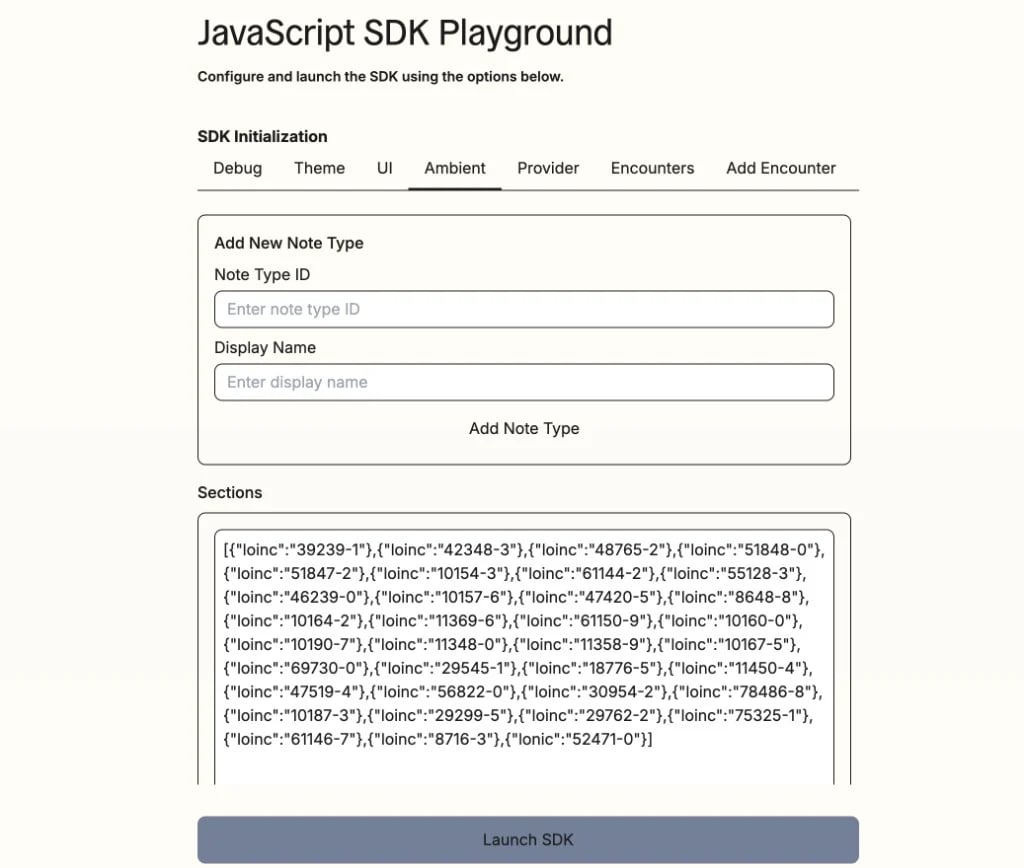
Alternatively, you can configure this directly in your application code using the following code configurations:
JavaScript
Combine the LOINC code
52471-0 with your other note sections and a PBC section when you need Problems in the same session.Provider workflow
After the ambient session completes, the Web SDK displays a Medication section on the clinical note page. If you enable Problem-Based Charting (PBC), this section appears below the problem sections. This user interface is built directly into the headed Web SDK note page. During the review process, providers can perform the following actions:- Review medications from the visit: View medication orders that the Web SDK generates from the ambient session clinical conversation.
- Link orders to problems: Use the problem selector to associate a medication order with a specific problem section in the note.
- Complete missing fields inline: Use inline dropdown menus within the Medication orders section to fill in missing required data.
- Submit the note: Select the submit button to send the note. When the provider submits the note, the SDK returns the note contents and structured order data directly to your application.
Inline editing
Each generated medication order can include an RxNorm RxCUI value in themedication_code parameter. The presence of this code determines whether a provider can edit the order details inline:
Non-edit workflow
The Web SDK uses a non-edit workflow by default. The interface does not include a full-screen editing panel. Providers must complete all missing fields using the inline controls within the Medication orders section.
Error handling
If order generation fails or orders are missing required fields, the Web SDK returns theORD_SDK_001 or ORD_SDK_003 error codes. Refer to Medication orders error codes for the error codes and descriptions.
